
Greetings, and welcome to another edition of the Rich on Tech newsletter!
What a week! Between the Jensen Huang story, the great Outlook outage of 2026 and then the FAA ground stop, there was no shortage of news to discuss.

On Thursday night, I spoke at the annual 10x10 event hosted by the Conejo/Las Virgenes Future Foundation, where 10 speakers each get 10 minutes to share their ideas about the future.
I decided to take my talk in a more practical direction. After answering thousands of questions from listeners and viewers over the years, I’ve noticed the same issues come up again and again. So I framed my talk around what I hope technology will do better in the future, and 10 things you can do right now to make technology work better for you.
10 tech tips everyone should live by
1. Use a password manager. You need strong, unique passwords for every account you create. There’s no way you’re going to remember them all, so let a password manager do the work. I like Bitwarden because it’s free, works across platforms and makes managing passwords easy.
2. Turn on two-factor authentication. This is that extra code you typically get by text message to confirm it’s really you. Even if a hacker gets your password, they’ll still need that second code to get into your account. Text messages are better than nothing, but I recommend using an authenticator app that generates a new code every 30 seconds. My favorite is Proton Authenticator. It’s free and works across various devices.
3. Freeze your credit. With so much of our personal information floating around on the dark web, this is one of the smartest things you can do to protect yourself. A credit freeze makes it much harder for someone to open a new credit card or line of credit in your name. Go to Equifax, Experian and TransUnion and freeze your credit with all three. It’s completely free. They may try to sell you paid services, but you don’t need them. Just look for the free security freeze. And if you ever need to apply for credit, you can temporarily lift the freeze online in just a few clicks.
4. Learn how to spot a scam. AI is making scams more realistic than ever. My number one rule is that if something feels urgent, slow down. Don’t call tech support numbers you find through random search results. Don’t give strangers remote access to your computer, and be careful about clicking links in unexpected messages. Scammers want you to act before you have time to think.
5. Cut down on email spam. If spam is going into your spam folder, that’s fine. Your email filter is doing its job. But if it’s making its way into your inbox, delete it or report it as spam without opening it. If it’s from a legitimate company or mailing list, it’s generally safe to hit unsubscribe. For even more privacy, look for the setting in your email app to block remote images. This can help prevent senders from tracking when you open their emails.
6. Check your app privacy. Does every app on your phone really need access to your location? Probably not. Go through your apps and review which ones can see your location, access your camera, microphone and photos. Change permissions that aren’t necessary, and while you’re at it, delete apps you no longer use.
7. Clean up your photos. We take so many pictures, but rarely organize them. My advice is to spend a few minutes at the end of each day or week looking through your recent photos. Get rid of the blurry shots, duplicates and screenshots you no longer need. A little cleanup along the way is much easier than trying to tackle thousands of pictures all at once.
8. Back up, back up, back up. You need to back up your computer and your phone, whether you’re using an iPhone or Android. Make sure your pictures, text messages and important files are protected. On Windows, you can use File History, and on a Mac, there’s Time Machine. You can also use an online backup service like IDrive, which is based in the Los Angeles area, or Backblaze. Whatever method you choose, make sure your backups are actually working.
9. Keep your devices updated. Your phone, computer, car, apps and smart home gadgets all have software that needs updating. I know updates can be annoying because they sometimes change things you’re used to, but they also fix bugs and security vulnerabilities. Don’t put them off indefinitely.
10. Be careful what you let AI do. We’re moving beyond AI that simply answers questions to AI agents that can actually perform tasks on your behalf. Tools like Meta’s Muse, ChatGPT’s Dots and other AI assistants are becoming increasingly powerful. Depending on the tool and permissions, some can browse websites, access connected accounts and even make purchases. That’s useful, but it also means you need to be careful about what access you give them. Pay attention to the permissions, the instructions and how much freedom you’re allowing. These tools can do a lot, so make sure you’re still the one in control.
Bonus tip: Give someone a digital picture frame. I’ve been a big fan of Aura digital picture frames for years, but I’m also really liking Amazon’s Alexa-powered photo frame. Both make excellent holiday gifts. You can put one in your own home or give one to a family member. The best part is being able to send pictures from your phone directly to someone else’s frame. With compatible Amazon devices, you can also use Amazon Photos to automatically back up your pictures and display a selection of them. It’s a great way to enjoy all those photos that would otherwise sit on your phone.
Sponsored: Give your old photos a digital life
Speaking of family photos, a company I’ve used and recommend is ScanMyPhotos.com. They’re based in Southern California and have been digitizing family memories since 1990.
The process is simple. Pack up your old photos, send them in, and let the professionals handle the scanning. Your originals are returned along with high-quality digital versions you can download, store and share. They also digitize slides, negatives, VHS tapes and old home movies.
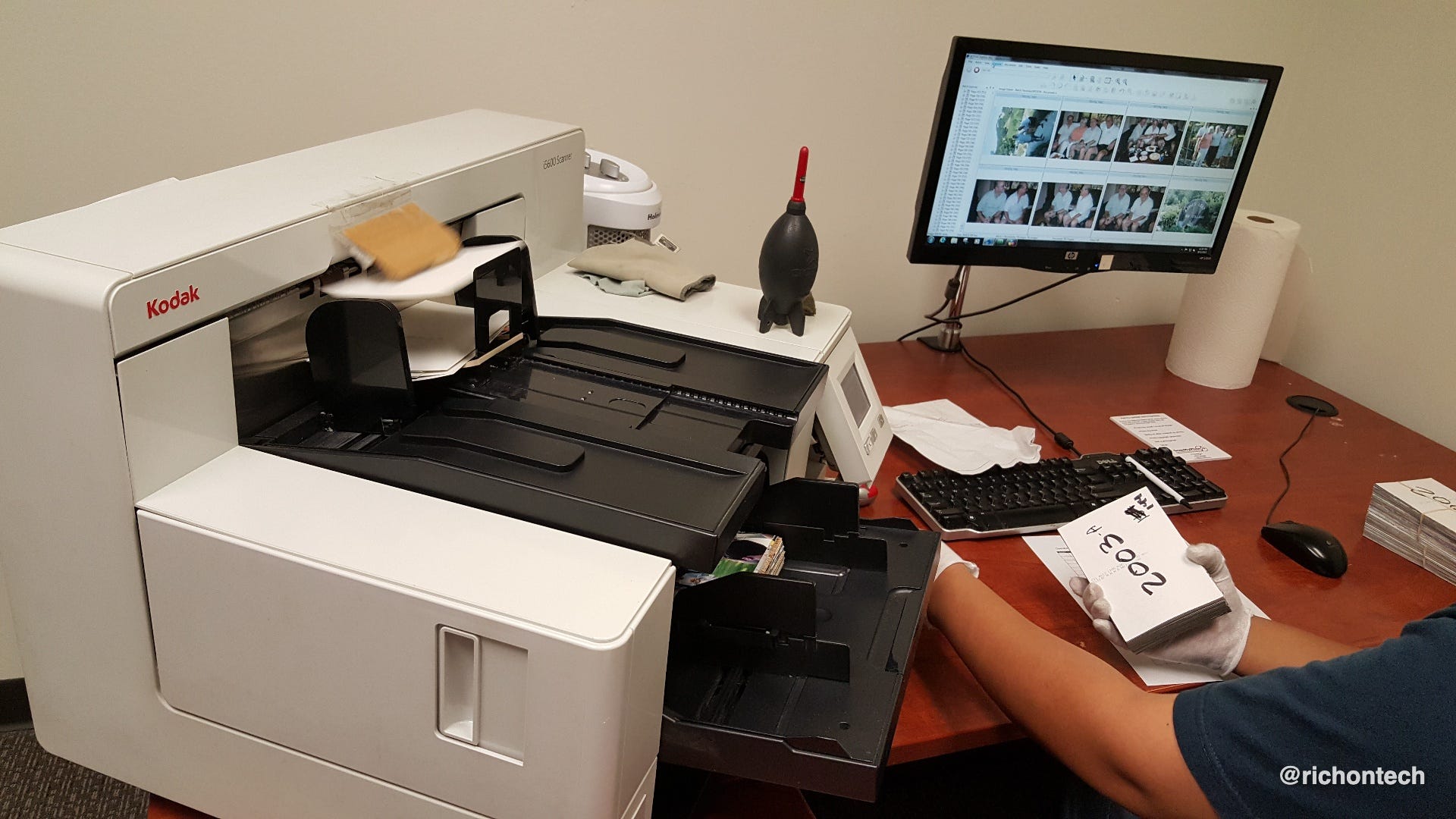
What I love about this is that it brings forgotten memories back to life. Those pictures sitting in a box can suddenly be shared with family, displayed on a digital picture frame or organized in your favorite photo app.
And don’t wait until a fire, flood or other disaster makes you wish you’d preserved those memories. The best time to digitize them is now.
ScanMyPhotos offers options for everything from a small stack of pictures to thousands of family photos. Their popular Photo Scanning Box holds more than 1,800 photos, with shipping included.
Special savings for Rich On Tech readers: Visit ScanMyPhotos.com and use promo code RICHONTECH at checkout for an exclusive additional discount on your order.
Those old memories deserve to be seen again, not forgotten in a box.
The great Outlook outage of 2026
I was at work Thursday when a colleague messaged me asking, “Is your email working?” I checked, and sure enough, it wasn’t.
That kicked off a massive Microsoft outage that disrupted Outlook, Teams, online versions of Word, Excel and PowerPoint, and other services for businesses and organizations around the world. The problems stretched into Friday, with Microsoft pointing to server failures and complications from rerouting traffic. The company said there was no indication of a cyberattack.
What really gets me is that the internet was designed to reroute traffic when something goes down. And that still works. The problem is that so much of what we do online now depends on a handful of giant companies like Microsoft, Amazon and Google. When one of them has an issue, the impact is enormous.
My advice: Before you start resetting passwords, reinstalling apps or changing settings because something isn’t working, check whether the service itself is down.
Here are a few status pages worth bookmarking:
Downdetector relies on user reports, so a spike in complaints doesn’t necessarily mean there’s a confirmed outage.
I asked on Facebook whether people managed to get any work done during the outage. Some found the break from email refreshing. Others lost productivity and even business opportunities.
Nvidia’s future without Jensen Huang
Since this newsletter is about useful consumer technology, not gossip, I won’t dwell on the Jensen Huang scandal. But there are a few important takeaways.
Nvidia’s co-founder and longtime CEO has resigned following reports of multiple affairs, including an alleged connection to a suspected Chinese spy. Longtime CFO Colette Kress is now interim CEO.
Nvidia is one of the world’s most valuable companies and a driving force behind AI. Not long ago, everyone and their barber was recommending its stock. Now, the scandal has shaken investor confidence and raised questions about the company’s future.

I actually saw Huang on stage at a Microsoft event just last month. He seemed personable, knowledgeable and enthusiastic about technology, talking about Nvidia’s early days and Microsoft’s role in its success. Wild to think how much has changed in just a few weeks.
The technology and talent are still there, but how much of Nvidia’s success depended on Huang’s leadership?
That viral iPhone warning is misleading
I’ve been getting a lot of messages about a scary warning circulating on social media. It claims that an iPhone feature called Live Listen is turned on by default and allows Apple to secretly listen to your conversations and even create transcripts of what’s being said around your phone.
The reality is quite different. Live Listen is an accessibility feature that’s been around for years. It lets you use your iPhone as a microphone to send audio to your AirPods or compatible hearing aids. It’s designed to help you hear conversations more clearly, especially in noisy environments.
The feature doesn’t give Apple access to secretly listen to your conversations or create transcripts. And it’s not secretly recording everything around you.
You’re free to toggle Live Listen off in your settings if you don’t use it, but there’s no reason to panic. I made an Instagram video explaining how it works and where to find the setting.
A fun toy for the holidays
This week on TV, I featured a fun toy called Loops Lab. If you’ve got a kid or grandkid, this could make a great holiday gift. The coolest part is that anyone can become a DJ! Just place little collectible characters on the toy, and each one adds a different sound or beat. Mix and match them to create your own music. No musical experience needed, and it’s super easy to pick up and have fun with. Check it out!
This newsletter is just the beginning
A quick reminder that my Rich On Tech radio show airs live every Saturday from 11 a.m. to 2 p.m. Pacific on KFI AM 640 in Los Angeles. You can listen over the air or stream it on iHeartRadio.
Can’t tune in live? My podcast is completely free, so you can listen whenever it’s convenient.
Like this newsletter, the show is all about the tech stuff I think you should know. Useful information you can actually put to work in your everyday life.
Want to give it a listen? Just hit play on the player below.
Tech Tidbits
Apple Watch safety features: Engadget has a helpful article on five Apple Watch health and safety features older adults should set up, including fall detection, heart alerts, medication reminders and Emergency SOS. Worth checking for yourself or a family member.
Google’s Rambler comes to Pixel 10: Google’s excellent AI-powered dictation feature is expanding to Pixel 10 phones. Just speak naturally, and it cleans up your words, removes the ums and ahs, and even fixes sentences when you correct yourself mid-thought.
Ring’s flying security camera: Ring announced its $250 Drone Cam (again!), which can fly around your house when a security sensor is triggered, livestream video and record what it sees.
Meta’s Muse comes to Apple Watch: You can now talk, text or dictate messages to Meta’s AI assistant right from your wrist. It’s also available on Wear OS watches.
What I bookmarked this week
Here are a few things that caught my eye this week. I haven’t fully vetted all of them, but they were interesting enough to bookmark.
Thrifty Traveler’s Card Benefit Tracker is a free tool that helps you keep track of all those credit card perks and credits you’re supposed to use. Especially handy if you’re paying an annual fee and want to make sure you’re getting your money’s worth. via From The Tray Table
Wing Display turns an Android tablet into a second monitor for your Mac. The wireless connection is free, although touch controls and other advanced features require a paid subscription.
Rehome turns an old iPad into a smart home dashboard for displaying photos, controlling lights, checking cameras and more. It works with Home Assistant, so you’ll need that set up first. The software costs just $4.99, and there’s even a stand you can 3D print for an additional $2.99.
Commonplace is like Facebook Marketplace for bulky items such as Pelotons and treadmills. The big difference? They handle the pickup, inspection, delivery and payment, so you don’t have to deal with moving heavy equipment or meeting strangers. Listing is free, but there are fees when an item sells.
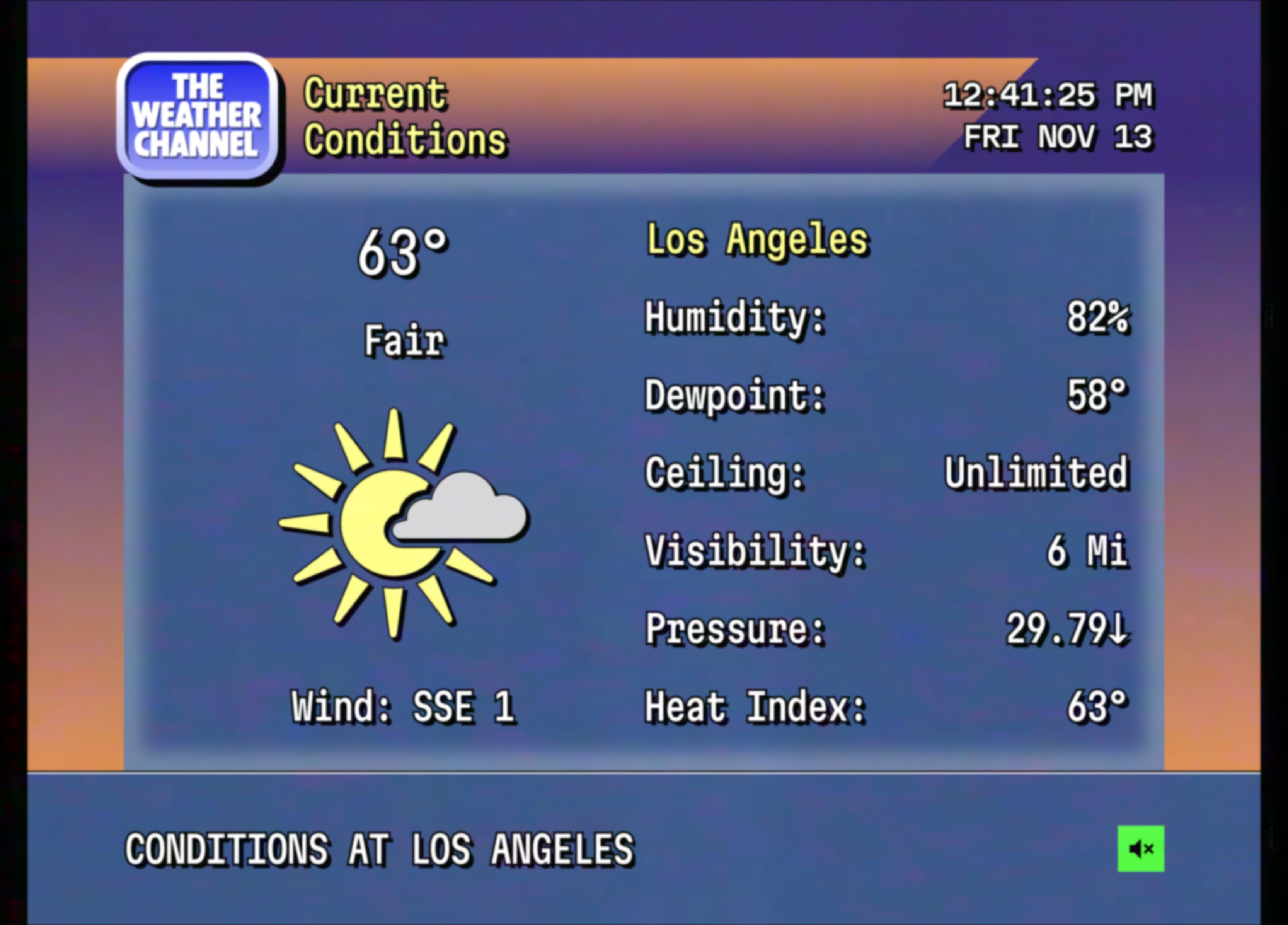
A blast from the Weather Channel past: My dad is a roofer, and growing up, he watched the Weather Channel every morning while I got ready for school. Now there’s a website that recreates that classic experience, complete with retro forecast screens and soothing background music. My favorite bookmark of the week!
Q&A
Keep an eye on your inbox this week. I’ve got a fresh Dear Rich coming your way!
Feedbag
A few notes from viewers and listeners this week:
Patrick, who followed my KTLA tips to stop spam calls, wrote, “I was getting 10-15 per day mostly for insurance, taxes and funeral expenses.” Now they’ve dwindled to almost zero. Love hearing that!
Ellen attended my 10x10 talk in Thousand Oaks and wrote, “I have been a big fan for many years - I remember when your oldest son was born!” Now that’s a longtime viewer!
Christine, who listens on KFI, thanked me for helping her understand Gmail storage. “That is exactly what I was looking for. Now that I understand the process, I can’t wait to get started and free up some space.”
Jim emailed to correct my grammar on the radio. I told him I’m no grammar expert, and if I were perfect, I’d probably be AI! He replied, “I never miss your program!”
Eliezer in South Carolina, who listens on KFI and the podcast, shared a useful tip: VirusTotal, a free website for checking suspicious files and links. Always appreciate a good recommendation from a listener!
That’s going to do it for this edition of the newsletter!
Believe it or not, we’re closing in on 80,000 subscribers. Thank you for your continued support. It really means a lot.
If you find this newsletter helpful, please forward it to a friend who could use some practical tech advice. It’s the best way to say thanks for the time and effort that goes into putting this together each week.
See you on the radio!
Rich
Unknown number calling? It’s not random.
Sponsored by Incogni
Ever wonder how a stranger calling your phone already knows your name? Your phone number, home address and even relatives’ names are often listed on people-search sites, making it easy for scammers to find you.
That’s why I use Incogni. It automatically sends removal requests to data brokers on my behalf and follows up to help keep my information off their lists. According to my latest privacy report, Incogni has completed 802 removal requests for me, with another 33 in progress and 117 recurring removals scheduled.
It won’t eliminate every spam call, but it can make your personal information harder to find.
Get 60% off Incogni annual plans with code RICHONTECH.