
Greetings and welcome to another edition of the Rich on Tech newsletter, and happy Halloween weekend!
Halloween is one of my favorite holidays, right up there with Thanksgiving and Christmas. I just love spooky season. As a kid, I dressed up as Dracula pretty much every year I can remember.

And how great is it that Halloween falls on a Saturday this year? That’s the way it should always be! If I were in charge, I’d immediately rearrange the calendar so that every holiday, including the Super Bowl, falls on a day when everyone has the next day off. Is that too much to ask?
Growing up on the East Coast, there was crisp fall air, cider donuts, apple cider, haunted hayrides, pumpkin patches… all the fun stuff that comes with this time of year. I have such great memories of it.
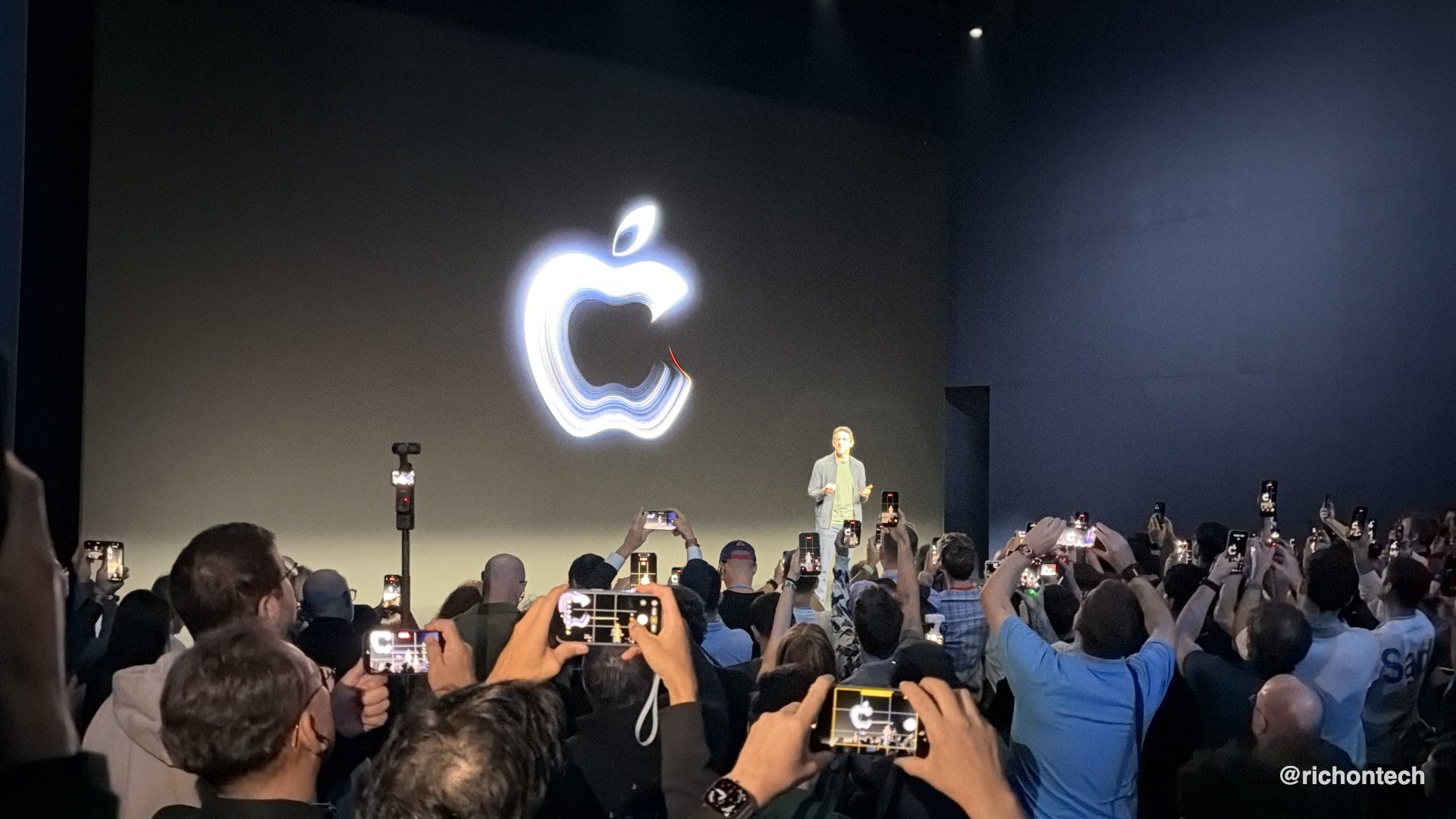
This week, I didn’t have to travel very far for an Apple event. It was held right in Hollywood, literally walking distance from the KTLA studios. So I walked over and got my hands on Apple’s first touchscreen MacBook.
Also this week, I’m testing my 1,273rd note-taking app. Okay, maybe not quite that many, but it sure feels like it.
This one is called Capacities, and it takes a completely different approach to organizing information. There are no traditional folders. You can organize things in various ways like collections, tags and types of content.
It takes a little getting used to, but I’m slowly starting to. It checks a lot of my boxes: organization, a daily calendar, daily notes and tasks. Plus, you can export your entire workspace in a universal file format at any time, which means I can easily move everything to another note-taking app that I’ll inevitably test in the future.
Another neat feature is the ability to send things straight into your daily note using Telegram or WhatsApp.
And there’s one more requirement I have for any note-taking app these days: it needs to work with my AI chatbot. I basically want my notes to serve as a second brain, full of memories and information I can access just by asking a question. I want to be able to say, “What restaurants have I saved in New York City?” and have my chatbot instantly pull up the list. Or ask it to summarize something I wrote months ago.
I went hands-on with Apple’s first touchscreen MacBook
Apple’s event in Hollywood was one of its smaller, invitation-only gatherings.
These events typically start with some coffee, breakfast bites and mingling before Apple’s new CEO takes the stage, thanks everyone for coming and gets right into the announcements.
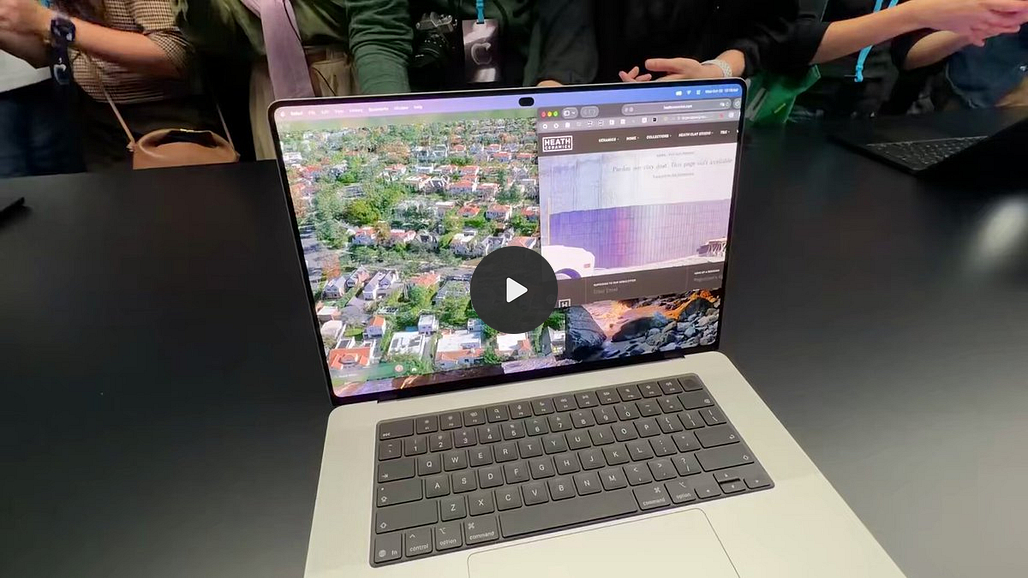
This time, the star of the show was Apple’s first touchscreen MacBook Pro.
After the presentation, we had the day to go hands-on with Apple’s latest devices, including the new iPad mini, faster MacBook Pros and updated iMacs. There were also briefings and demonstrations, and the whole thing wrapped up with a concert, which I wasn’t able to stay for.

But let’s talk about that touchscreen MacBook Pro.
This thing is a beast. It has Apple’s powerful M5 Pro and M5 Max chips, all the ports you’d want, including an SD card slot, USB-C ports on both sides, HDMI and a headphone jack. The 14-inch model weighs just 3 pounds, while the 16-inch comes in at 4 pounds.
The big addition, of course, is touch. If you’ve ever used an iPhone or iPad, you already understand the appeal. Instead of reaching for your trackpad or mouse, you can tap, swipe or pinch the screen.
And Apple really went all out on the display. It’s a beautiful OLED screen that’s bright, vibrant and has amazing colors. I didn’t notice fingerprints being much of an issue during my hands-on time.
Battery life is rated at up to 24 hours, and Apple even brought back something I loved about my very first MacBook years ago: the illuminated Apple logo on the lid.
Now for the bad news. This thing is expensive.
The 14-inch model starts at $2,899, while the 16-inch starts at $3,399. And those are just the starting prices. Add more memory, storage or the optional nano-texture display finish, and the price climbs even higher.
I’d love to have one of these machines, but that price tag is definitely giving me pause.
What’s interesting to me is how Apple seems to be rethinking the boundaries between its products. For years, the company kept the Mac, iPad and iPhone in their own separate lanes. But now we have the iPhone Duo, which combines a phone and tablet, and a MacBook that borrows one of the iPad’s biggest features.
So, do you actually need a touchscreen on your laptop?
I think it comes down to how you work. Personally, I’ve tested plenty of Windows laptops with touchscreens, and I rarely use the feature beyond quick taps to close windows, move the cursor or select a text field.
If your workflow really benefits from touch, this could be a fantastic machine. You just have to be able to stomach the price tag.

The new iPad mini is tempting, but pricey
I also went hands-on with the new iPad mini, and this is something I really want. As much as I love the iPhone Duo, I don’t think it’s going to find a permanent place in my pocket anytime soon. But I do love the idea of a small tablet I can take just about anywhere.
The new iPad mini has a gorgeous 8.5-inch OLED screen, making it the perfect size for reading, watching movies on a plane or just tossing into a bag.
There are two new features I like. First, it’s now water and dust resistant. That’s great if you like reading by the pool, although I still wouldn’t recommend taking it swimming.
The other is an optional matte display that cuts down on glare. In person, it looks closer to a printed page rather than the shiny, reflective screen we’re used to on an iPad.
But here’s the catch. The new iPad mini starts at $699, and that’s without the fancy display. In fact, the nano-texture option isn’t even available on the base model, so you’ll have to spend more to get it.
Meanwhile, Amazon’s new Alexa Tablet 8 starts at just $229.99. It has an 8.7-inch screen, runs Android and even includes access to the Google Play Store.
Now, I still think the iPad has the advantage when it comes to tablet-optimized apps, accessories and overall polish. But if all you’re doing is reading books, watching movies on a plane or browsing the web, Amazon’s tablet is probably the smarter buy.
Amazon’s new photo frame might be the perfect holiday gift
Speaking of Amazon gadgets, the company just introduced what I think could be one of the hottest gifts of the holiday season.
If you’ve followed me for a while, you know I’m a big fan of Aura digital picture frames. They’re one of my favorite ways to display family photos, especially because you can give one to Grandma and send pictures of the grandkids straight to her frame from your phone.
Now Amazon is taking that idea a step further with its new Alexa Photo Frame.
It’s a 10-inch digital frame that connects to Amazon Photos, which can automatically back up pictures from your phone. But here’s where things get interesting. Alexa’s AI can pick out the best pictures to display, looking for things like smiling faces, good lighting and even seasonal moments. It also knows to skip the stuff nobody wants in a picture frame, like receipts and screenshots.
I haven’t tested it yet, so I can’t tell you how well the AI works, but I love the concept.

With Aura, you’re typically curating the photos yourself. That’s great, but the rotation can get a little stale if you haven’t uploaded anything new in a while. Amazon’s approach keeps things fresh automatically. It’s similar to what I’ve loved about Google’s Nest displays for years, where there’s always a rotating selection of pictures from my Google Photos library.
Amazon’s frame also lets family members share pictures directly to someone else’s frame. And there’s a neat new twist: you can attach short voice messages to photos. Think, sending Grandma a picture of the grandkids along with a little recording of them saying hello.
The Alexa Photo Frame starts at $199.99, with real wood versions available for $229. I already ordered one and got $50 off through a promotion, bringing my price to about $150. That’s the price I’d aim for. I wouldn’t rush to pay full price when there’s a good chance we’ll see more deals throughout the holidays.
My recommendation: If you’re not an Amazon Prime member, skip this frame. Too many of its best features require Alexa+, which is included with Prime. I’ll let you know what I think once I’ve had a chance to test it.
And while we’re talking about Amazon Photos, here’s a public service announcement that might save you some money.
If you’re already paying for Amazon Prime, you get unlimited full-resolution photo storage included with your membership. Just download the Amazon Photos app for iPhone or Android and turn on automatic photo backup.
I mentioned this on TV recently, and a lot of people had no idea this benefit existed.
The one catch is that Amazon only includes 5GB of video storage. Thankfully, you can turn off automatic video uploads in the app’s settings and use it strictly for photos.
It’s a great way to keep a second backup of your pictures without paying for another cloud storage service. Just make sure your videos are backed up somewhere else, too.
The simple setting that can protect your phone number
Last weekend on my radio show, I shared a simple way to protect your phone number from hackers and something called SIM swapping, where scammers trick your wireless carrier into transferring your number to a device they control.
A lot of you responded, so I decided to turn the tip into a TV segment.
We walked through the steps for AT&T, Verizon and T-Mobile, showing how to enable the security features that help prevent someone from transferring your number to another carrier or activating it on another device without your permission.
Depending on your carrier, it’s just one or two settings that take seconds to enable. And it made me wonder why these protections aren’t simply turned on by default.
There is one catch. Some of these security locks can also prevent you from transferring your number or activating a new phone when you actually want to. But you can temporarily turn them off when you need to make a change.
It’s a simple step that can make it much harder for someone to hijack your phone number, which is especially important since so many of our accounts still rely on text messages for security codes.
Watch my TV segment below, and check out the accompanying blog post for step-by-step instructions for AT&T, Verizon and T-Mobile. I’ve also included links to the security settings for several smaller carriers.
4 cybersecurity tips we can learn from water utilities
Speaking of cybersecurity, this week I also did a TV story about how local water utilities are preparing for potential cyberattacks. They’re strengthening their systems and learning how hackers might try to break in before it happens.
What I found interesting was how much of the advice applies to the rest of us, too. One of the cybersecurity experts I interviewed shared four simple tips from the Cybersecurity and Infrastructure Security Agency (CISA) that everyone should follow:
Turn on two-factor authentication. This adds an extra layer of protection to your accounts, so even if someone steals your password, they still need another way to verify their identity. An authenticator app or passkey is preferable to text messages when available.
Keep your devices updated. Software updates often fix security vulnerabilities that hackers can exploit. Turn on automatic updates whenever possible.
Use strong, unique passwords. Don’t reuse passwords across accounts. A password manager can create and remember long, random passwords for you, so you don’t have to.
Watch out for phishing scams. Be suspicious of unexpected emails, texts or messages asking you to click links or share personal information. Even messages that appear to come from someone you know could be scams. When in doubt, contact the person or company through a trusted channel.
These four steps won’t eliminate every threat, but they’ll go a long way toward making your digital life more secure.
Sponsored: Is it time to rethink your email?
Think about how many times you’ve upgraded your phone, switched browsers or tried new apps over the years. Now, when was the last time you thought about changing your email provider?
For many of us, it’s still the same account we signed up for years ago. It works, so why change it? But that one account has become the key to almost everything we do online: banking, shopping, subscriptions, personal conversations and password resets.
That’s a lot of trust to put in a company you picked mostly because its email was free.
Here’s a name you might not know: StartMail. It’s a private email service from the Netherlands that’s been around since 2014, quietly offering a different approach to email. No ads, no tracking, no profiling. Just an inbox designed to keep your personal information private.
One of its best features is unlimited email aliases. Instead of handing out your main address whenever you shop or sign up online, you can use a different one. Everything still arrives in the same inbox, and if an address starts to get spammy, you can turn it off instantly.
You also get encrypted email, apps for iPhone and Android, and compatibility with Apple Mail and Outlook. StartMail even helps transfer your existing emails and contacts, so switching doesn’t have to be a headache.
StartMail is funded by its subscribers, not advertisers. And if you’re ready to rethink who’s looking after your email, there’s a good reason to give it a try.
Rich on Tech readers get 50% off their first year, plus a 7-day free trial!
This free AI dictation app is challenging my favorite
If you’ve followed me for a while, you know I’m a huge fan of Wispr Flow, the AI voice-to-text app that lets you dictate just about anything instead of typing. It works on iPhone, Android, Mac and Windows, and I think voice-first computing is only going to become more important.
In fact, Wispr Flow is now valued at $2 billion, which tells you just how much interest there is in this technology.
But here’s where things get interesting.
Another company called Granola, best known for using AI to transcribe and summarize meetings, just launched its own voice-to-text feature for Mac. And get this: it’s completely free, with unlimited dictation.
That’s a big deal because Wispr Flow’s free plan limits you to 2,000 words a week on desktop. If you want unlimited dictation, you’ll pay $15 a month, or $12 a month with an annual subscription.
Granola works across your Mac, so you can dictate emails, messages, notes or just about anything else. Just press the Fn key and start talking. The AI cleans up your speech and turns it into nicely formatted text.
And here’s the best part: I’ve been using Granola to dictate this entire newsletter, and so far, it’s doing a fantastic job.
Right now, the dictation feature is Mac-only, but the company says iPhone, Android and Windows support are coming soon.
If you’ve been curious about AI dictation but didn’t want another monthly subscription, this is worth trying.
Tech Tidbits
TikTok wants to help you find your next favorite restaurant. Its new Must Eat guide highlights restaurants getting the most buzz on TikTok in New York City, Los Angeles and the Bay Area. To find it, open TikTok, tap your city at the top and select Must Eat. My favorite feature? You can sort by distance to find a viral restaurant that’s actually close to you.
Micro Center has its own version of the Geek Squad. It’s called the Knowledge Bar, and it offers computer troubleshooting, repairs and tech support. If you have a Micro Center nearby, it’s another option when you need help with your gadgets. And the chain is expanding, with its newest store opening in Austin, Texas, on November 13.
iHeartRadio gets a simpler look. A new Lite Mode strips the app down to the essentials, making it easier to jump into your favorite stations, recently played audio and presets without all the clutter.
Bookmarks
Here are four things I bookmarked this week. I haven’t fully tested or vetted them yet, but they looked interesting enough to save for later, so I figured I’d share.
Malwarebytes Scam Link Check is a free tool that lets you paste in a suspicious link before clicking it. It checks for signs of phishing, malware and scams, then tells you what it found. You can also look up suspicious phone numbers. Just remember, a clean result doesn’t guarantee a link is safe, but it’s another useful tool to have in your cybersecurity toolbox.
Clean Email might be worth a look if your inbox is out of control. It helps you find clutter, unsubscribe from mailing lists and automatically clean up messages you don’t need. The company emphasizes privacy and says it doesn’t sell your data. There’s a limited free option, but unlimited cleanup starts at $9.99 a month for one email account.
Sorti is an AI-powered organizer for all those screenshots, recipes, Instagram reels, TikToks and links you save and then can never find again. It automatically sorts everything into collections so you can easily find it later. It works on iPhone and Android, and the company says it’s completely free, with no subscriptions or ads.
Purge is a free, open-source Mac app that helps you reclaim storage by finding unnecessary caches, leftover app files, duplicates and other junk. What I like is that most deleted items go to the Trash first, so you can recover them if needed. Just review what you’re removing, since some types of cleanup are permanent. I discovered this one through the excellent Hulry Newsletter.
Q&A: Keep an eye on your inbox this week for a new edition of Ask Rich, packed with answers to your tech questions!
Feedbag
A few notes from viewers and listeners this week:
John in Yukon, Oklahoma had some kind words about my family after watching Tanner deliver the weather on KTLA. “One of the things I really like about you as a person (even though I have never met you) is how connected you are to your family.”
Philip B. wrote: “I heard you on WGN with great advice.” Always nice to hear from listeners in Chicago!
One KFI listener wrote, “I am not a tech person, but find that you make a lot of sense. I am learning!” That’s exactly what I hope to accomplish with every show.
Richard B. summed up what I try to do: “Trying to help people stay safe. Very important work.” Couldn’t agree more.
Brian W. wrote, “I own my own IT support company and just love all the information that Rich gives us.” Always nice to get a thumbs-up from someone who works in tech!

One more thing before I go: I’ve finally figured out a way to flag emails from paid subscribers in my inbox. As you can imagine, I get a lot of messages, and I want to make sure I can easily spot the ones from people who help support this newsletter.
It doesn’t mean I can respond to every email, but it does help me prioritize your messages when I have time to reply. Just a small way of saying thank you for your support.
And whether you’re a free or paid subscriber, please know how much I appreciate you being here!
Rich