
Your phone number is more valuable than you might think. It doesn’t just let people call or text you. It can also be the key to getting into your bank accounts, email and other important services.
That’s because so many companies still send two-factor authentication codes by text message. If a hacker takes control of your phone number, they could potentially intercept those codes and use them to break into your accounts.
The attack is called SIM swapping. It happens when someone tricks your wireless carrier into transferring your phone number to a SIM card or eSIM they control.
The good news is that AT&T, T-Mobile and Verizon all offer free security features designed to help prevent this. The catch? You typically have to turn them on yourself.
Here’s exactly how to do it.
AT&T
AT&T has a feature called Wireless Account Lock. Once enabled, it blocks certain account changes, including SIM swaps and transferring your number to another carrier. One switch protects every line on your wireless account.
Open the AT&T app on a phone connected to your account. Tap the person icon, scroll down to Wireless account lock, then swipe to enable it.
AT&T will send an email to the primary account holder and a text message to each active wireless number whenever the lock is turned on or off.
T-Mobile
T-Mobile has two separate protections worth enabling.
The first is SIM Protection, which helps prevent someone from moving your phone number to another SIM or eSIM.
Open the T-Mobile app, go to Account > Settings > Security > SIM Protection. You can enable it for all your lines at once.
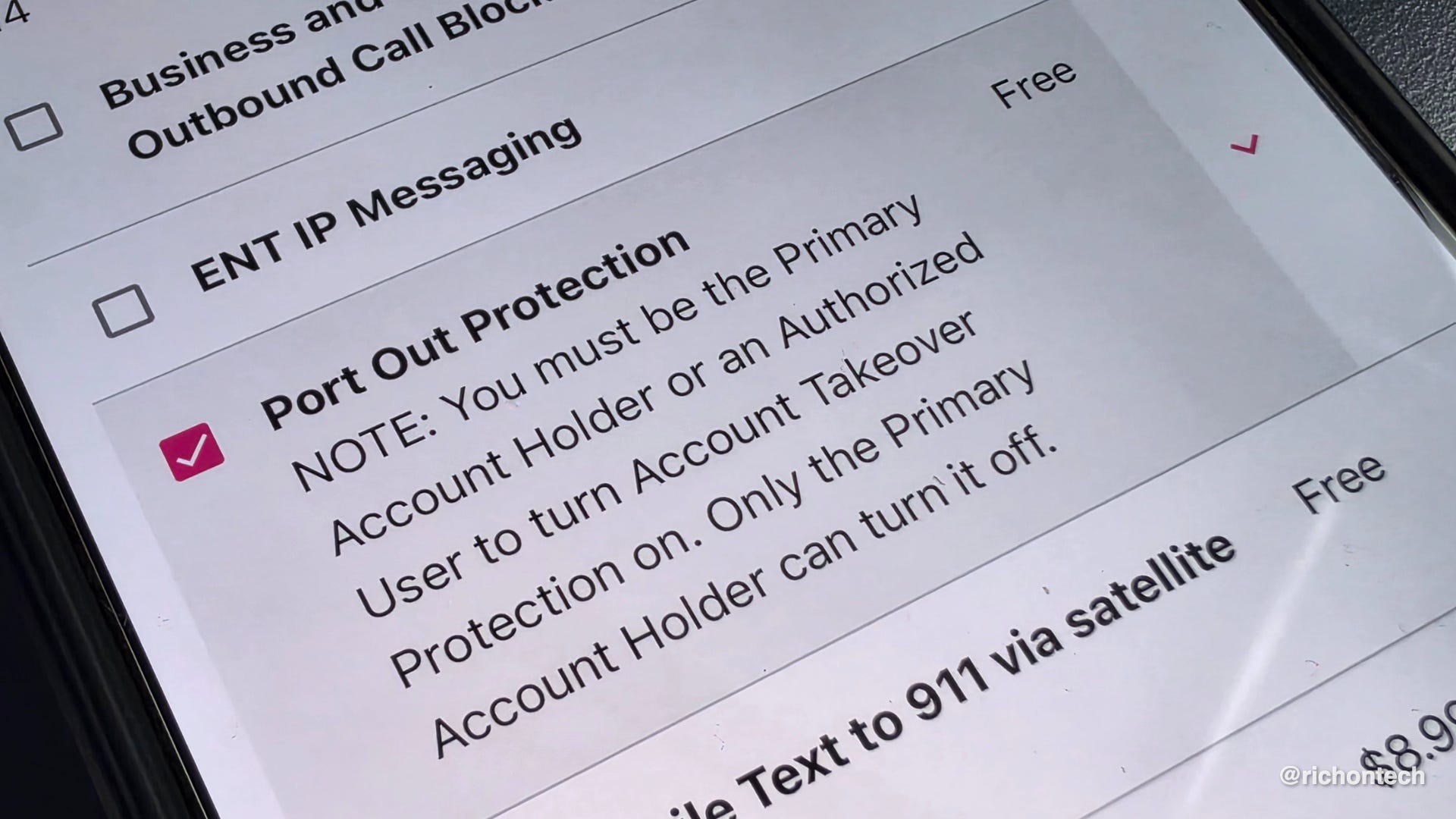
The second is Port Out Protection, which helps prevent someone from transferring your number to another wireless carrier.
In the app, go to Account > Manage add-ons, then scroll down to Line Level Services and look for Port Out Protection.
Important: Port Out Protection is applied separately to each line. Make sure you enable it for every number you want protected.
Verizon
Verizon also offers two features.
SIM Protection helps block unauthorized SIM and device changes, while Number Lock helps prevent someone from transferring your number to another carrier.
Open the My Verizon app, tap Me, then scroll down to Profile & settings. Look for Number Lock and SIM Protection and enable both.
If you use a smaller wireless carrier, check whether it offers similar protections. Try searching for your carrier’s name along with “port out protection.”
One thing to remember: If you switch phones or wireless carriers, you might need to temporarily disable these protections to complete the transfer. It’s an extra step, but one that’s worth taking.
One more way to protect yourself
Whenever possible, stop using text messages for two-factor authentication. Instead, use an authenticator app that generates security codes independently of your phone number.
One of my favorites is Proton Authenticator. It’s free and available for both iPhone and Android.
An authenticator app won’t prevent a SIM swap, but it can help keep someone who steals your phone number from accessing your accounts.
My advice? Take a couple of minutes today to open your wireless carrier’s app and turn on these protections. It’s one of the simplest things you can do to make your digital life more secure.