
You’re browsing the web when suddenly a warning pops up saying your computer has been hacked, your phone is infected with a virus, or your antivirus software has detected a major problem.
It looks scary, but chances are it’s fake.
These warnings are designed to trick you into calling a phone number, downloading software, or giving someone remote access to your device. Sometimes they’re just annoying notifications from websites you accidentally gave permission to.
Here’s how to figure out what’s going on and make those warnings stop.
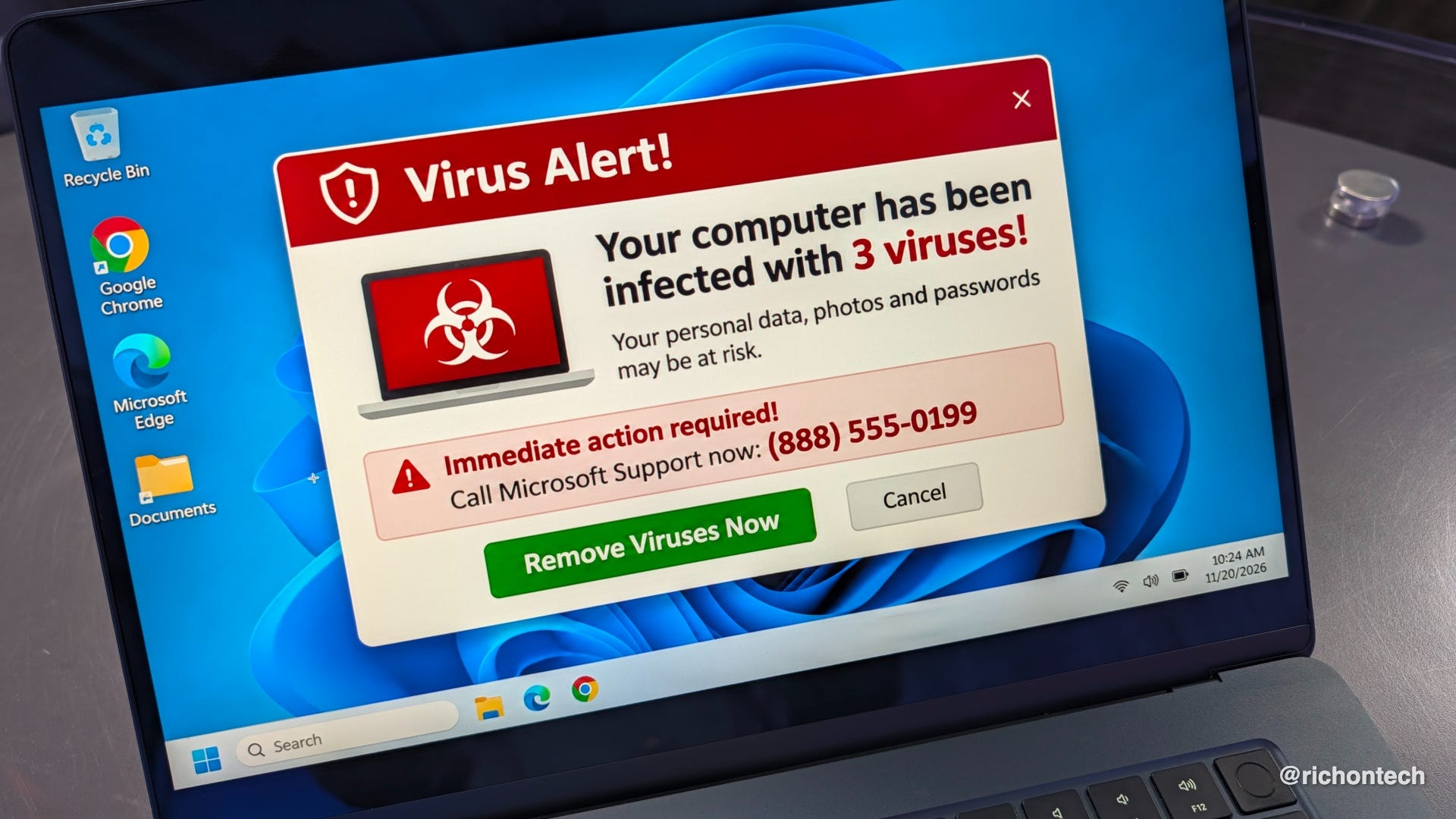
First, don’t interact with the warning. Don’t call the number, click the links, download anything, or give anyone remote access to your computer.
Instead, close the browser or offending app. On an iPhone or Android, open your recent apps and swipe the app away. On Windows, press Alt + F4 to close the active window. On a Mac, press Option + Command + Escape to open Force Quit, then select the app.
Next, take a look at the apps installed on your phone or computer. Uninstall anything you don’t recognize, need, or use. Just be careful not to remove essential system apps.
On Android, a rogue launcher could be responsible for strange behavior. Go to Settings > Apps > Default apps > Home app and make sure your preferred launcher is selected. The exact menu may vary depending on your phone.
Also, check your browser extensions. In Chrome, click the three-dot menu, select Extensions > Manage extensions, and remove anything suspicious or unnecessary.
If your browser still isn’t behaving properly, you can reset it. In Chrome, go to Settings > Reset settings > Restore settings to their original defaults. This resets things like your startup page and search engine, and disables extensions, but keeps your bookmarks and browsing history.
Now, here’s something I see all the time: notification spam.
If you’re getting scary alerts in the corner of your screen, even when you’re not visiting a suspicious website, you may have accidentally allowed a website to send notifications.
In Chrome, go to Settings > Privacy and security > Site settings > Notifications. Under the list of sites allowed to send notifications, remove or block anything you don’t recognize or trust.
Finally, run a security scan. On Windows 11, open Windows Security > Virus & threat protection > Quick scan. On Android, open the Google Play Store, tap your profile picture, select Play Protect, and tap Scan.
Remember, a scary warning inside a website doesn’t necessarily mean your device is infected. Many of these alerts are just webpages trying to get your attention. And if a warning tells you to call a phone number for tech support, that’s a major red flag.
Bonus: If you haven’t cleared your browsing history, that could clear things up too!
To clear your Safari history on iPhone, go to Settings > Apps > Safari, then scroll down and tap Clear History and Website Data. Choose how far back you want to erase your browsing history, then tap Clear History to confirm. This also clears cookies and cached website data, but won’t affect your saved AutoFill information.
To clear your Chrome history on iPhone or iPad, open Chrome, tap the three-dot menu > Delete Browsing Data. Choose a time range, then tap Browsing Data to select what you want to remove, including browsing history, cookies and cached files. Tap Confirm, then Delete Browsing Data. If you’re signed into Chrome and syncing your history, it will also be deleted from your other synced devices.
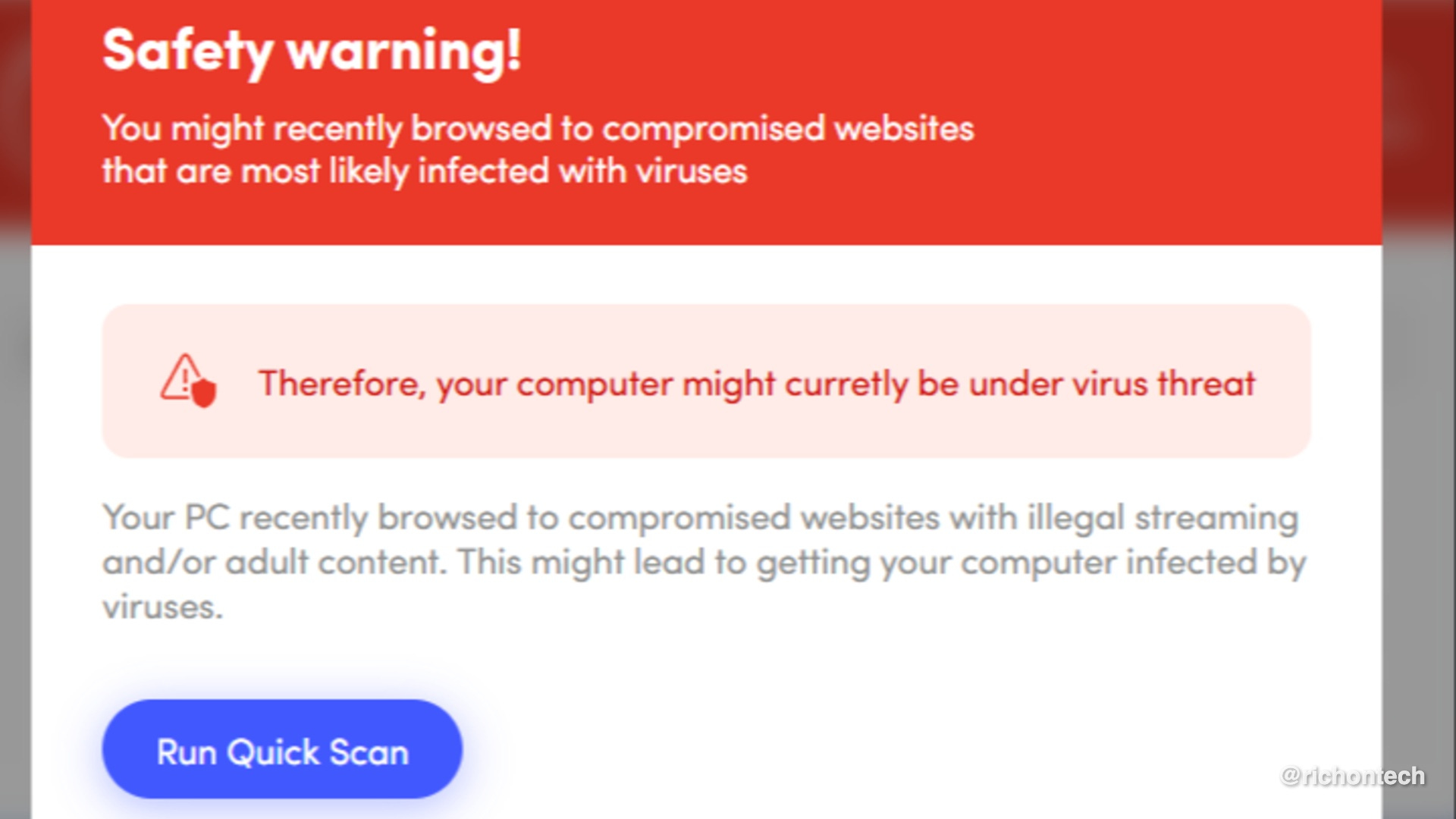
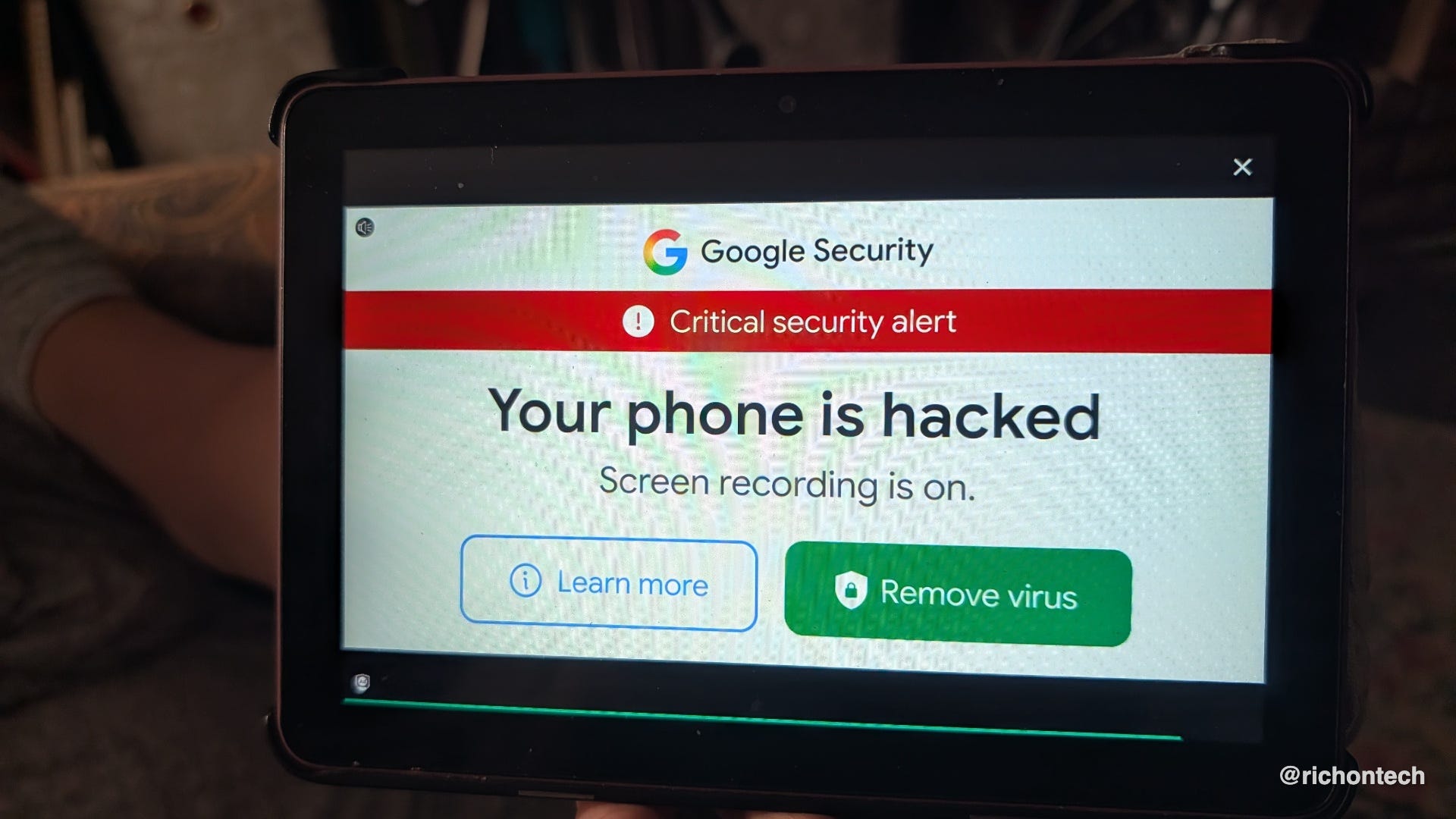
Here are some actual bogus alerts sent in by viewers and listeners recently.
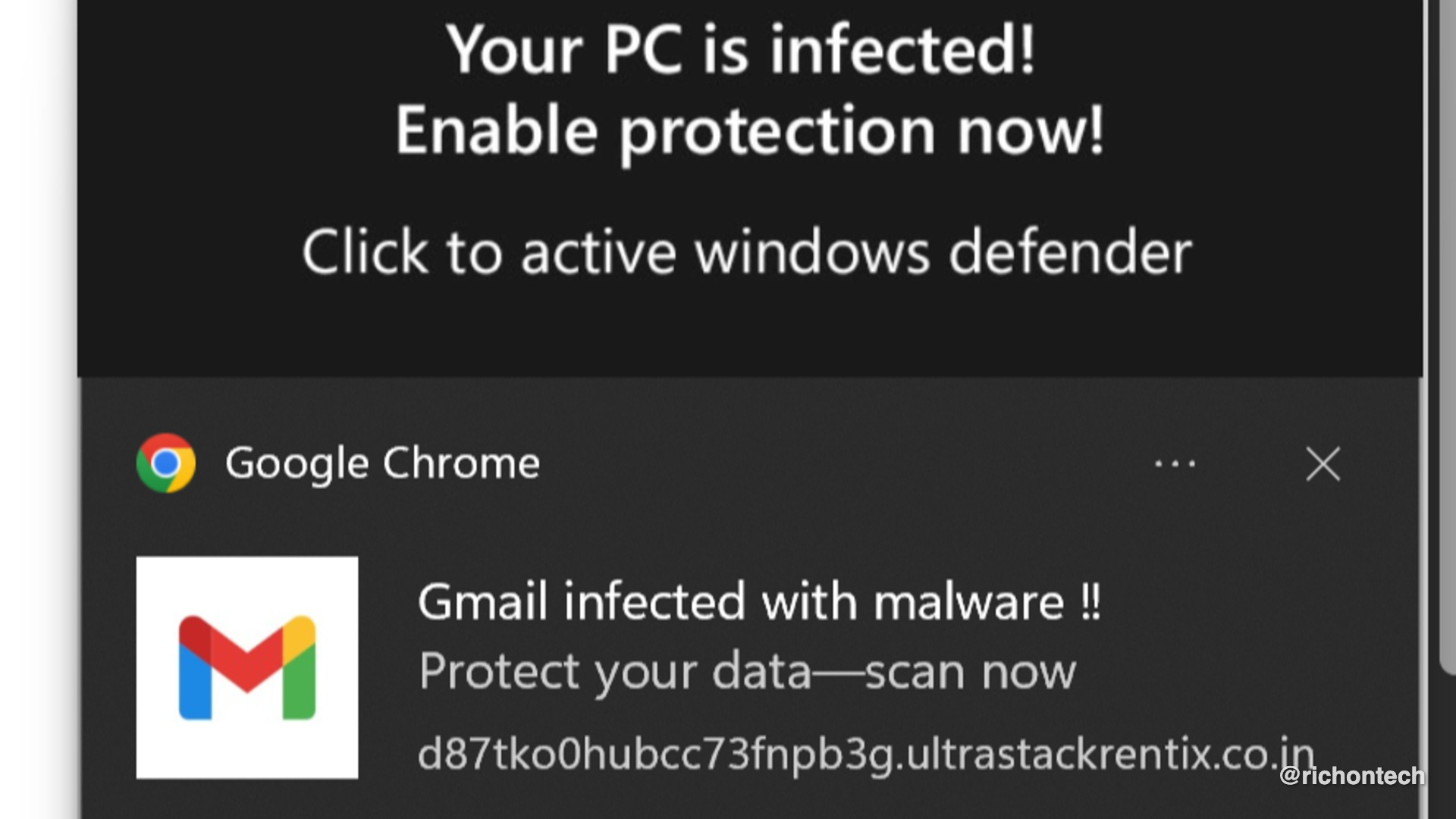
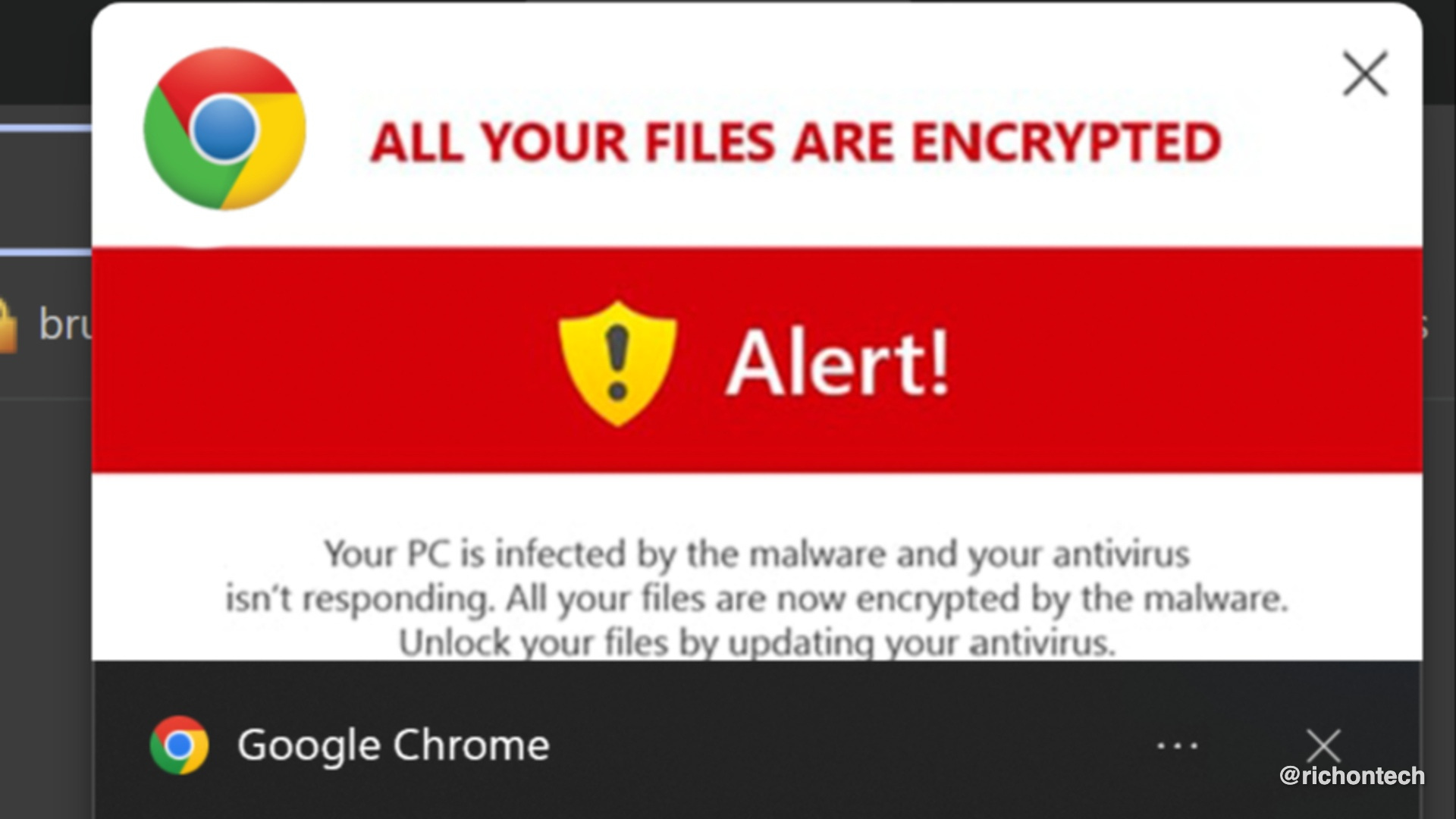
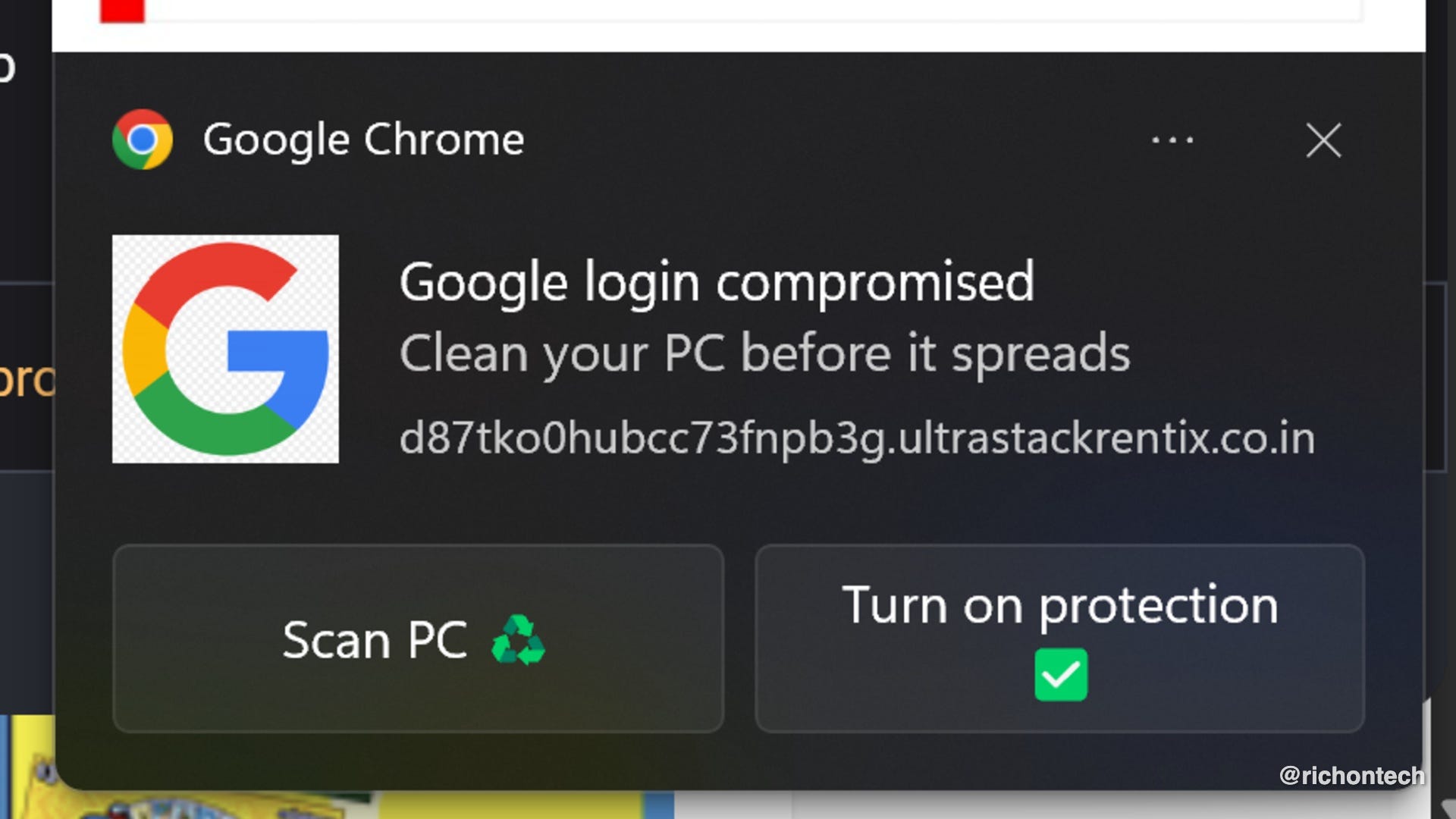

Thank you so much - watch you every morning for the latest info. This has helped a lot.
Just happened on my PC a week ago. Thanks for this info.