
Images of your home can be helpful when you’re buying or selling, but they often stick around online long after a transaction is complete.
From street-level views to old real estate listings, your house may be more visible than you realize. The good news: there are ways to clean up your digital footprint and limit what others can see.
Here’s how to remove or blur images of your home across some of the most common platforms.
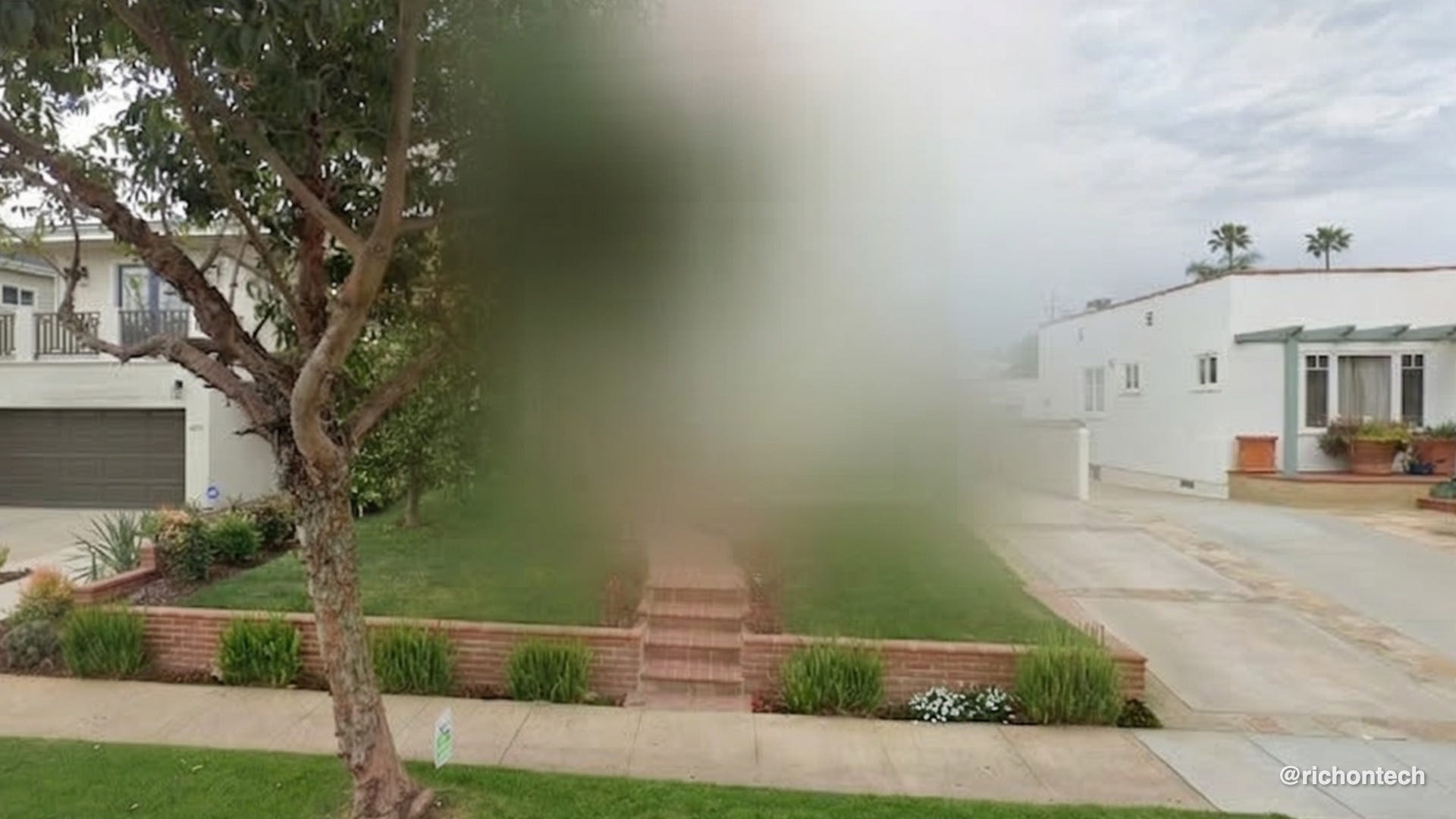
Google lets you blur your home, but keep in mind, the change is permanent.
• Search for your home on Google Maps
• Open Street View
• Click “Report a problem” in the lower right corner
• Fill out the form and submit your request
You may be asked to provide proof that you live at the address.
Apple Maps (Look Around)
Apple offers a similar option through its Look Around feature.
• Go to maps.apple.com and search your address
• Open the Look Around image
• Tap the three dots in the upper right corner
• Select “Report an issue”
• Choose “Obscure imagery of my home” and follow the prompts
Remove old real estate photos
If your home was ever listed for sale, interior photos can live online for years.
• Sign in to your account
• Tap your profile icon and select “My Homes”
• Choose your home and tap “Edit Photos”
• Check “Hide listing photos” and save
• Sign in and view your home listing
• Tap your profile and check the public view
• Select “Edit Facts”
• From there, you can remove individual photos, delete all of them, or hide them from public view
Don’t forget lesser-known sites. Some services use crowdsourced images that may not show up in traditional searches.
Mapillary uses photos captured by cars, bikes and even phones to build street-level imagery.
• If you find your home on the platform
• Tap the three-dot menu on the image
• Select “Report image”
• Choose the privacy option and submit your request
These are some of the most common places your home may appear online. But if you spot images elsewhere, look for options like “report,” “privacy,” or “remove image” to request a takedown.
Taking a few minutes to check these platforms can go a long way in protecting your privacy.