
After this morning’s earthquakes in Los Angeles, several phones in my house went off with earthquake alerts. It’s a good reminder to take a minute and check this setting on your phone.
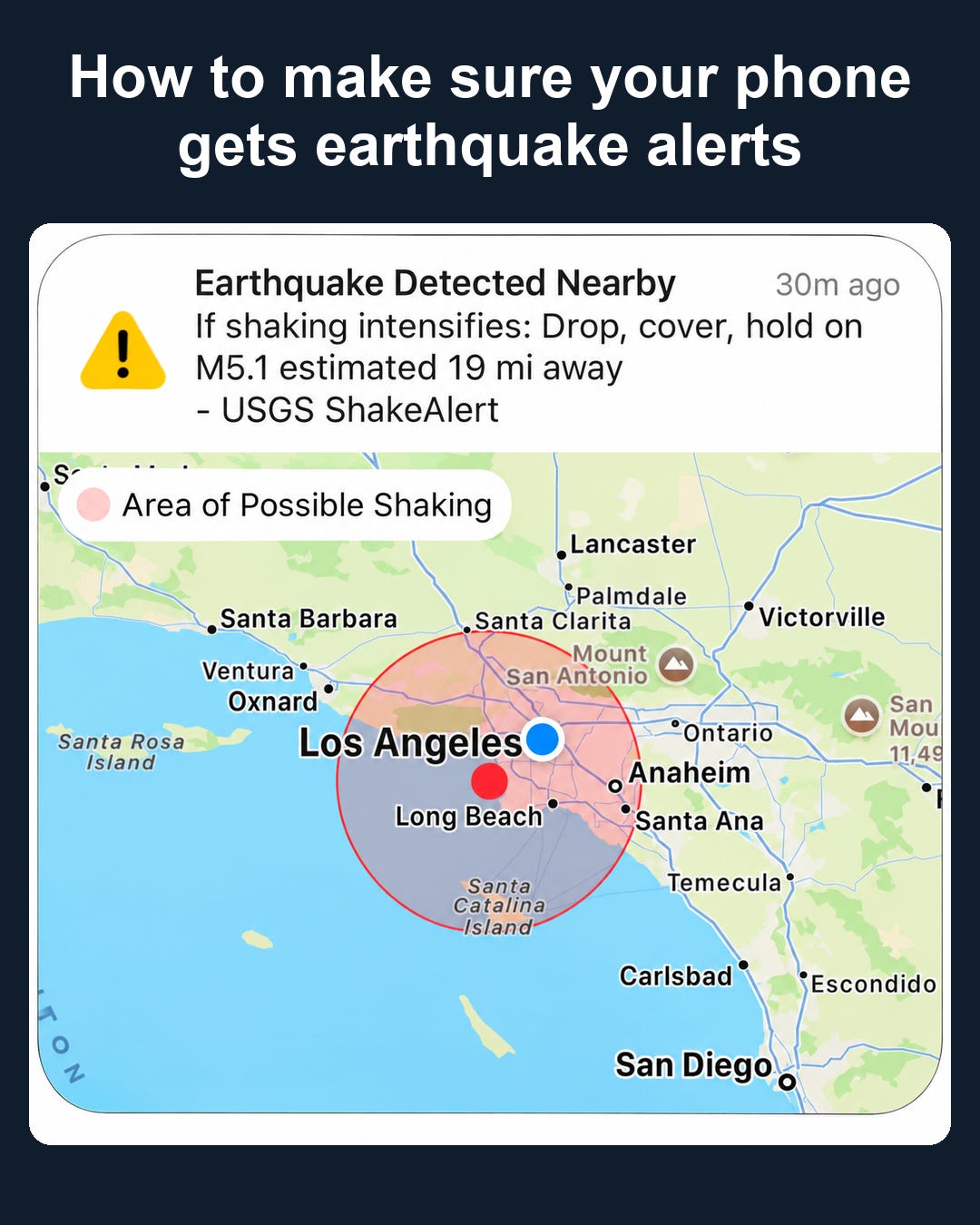
It used to be that if you wanted earthquake alerts beyond the government emergency alerts, you needed an Android phone or a separate app. Now, both iPhone and Android have earthquake alerts built in and turned on by default where supported. Here’s where to check.
On iPhone (iOS 26.2 or later)
Open Settings.
Tap Notifications.
Scroll all the way past the list of apps.
Tap Enhanced Safety Alerts.
Make sure Earthquake Alerts is on.
While you’re there, you’ll see an option called Improve Alert Delivery. It’s off by default. If you turn it on, it shares your approximate location with Apple to help alerts reach you faster and more reliably. This is separate from Government Alerts, which you can leave on too. Apple’s instructions
On Android
Open Settings.
Tap Safety & emergency.
Tap Earthquake alerts.
Make sure Earthquake alerts is on.
Keep Wi-Fi or mobile data turned on so your phone can receive the alerts.
If you don’t see it there, try searching Settings for “earthquake alerts.” Google’s instructions
If you don’t see the setting, try MyShake
Download the free MyShake app for iPhone or Android.
Open it and allow notifications.
Follow the app’s prompts to allow location access so it can send alerts for your area.
One important thing: If you get an alert or feel shaking, drop, cover, and hold on. If you’re close to the epicenter, the shaking can start before your phone goes off. Don’t wait for the alert.