
Every single week I get emails from people who’ve lost everything… photos, files, contacts, videos… sometimes even access to their phone or email.
And once it’s gone… it’s usually gone for good.
There’s a well-known rule in tech called the 3-2-1 rule: three copies of your data, on two different types of storage, with one copy off-site.
But let’s be real… most people aren’t doing that.
So here’s the simpler version:
If you have even ONE solid backup, you’re already ahead of most people.
Because the biggest risk today isn’t always losing your data… it’s losing access to it.
Accounts get hacked. Passwords get forgotten. Accounts get locked. And suddenly everything is still there… but you can’t get to it.
That’s why having your own copy matters.
Your own cloud at home (NAS)
If you want more control, you can create your own personal cloud using a NAS (Network Attached Storage).
Think of it as a hard drive connected to your home network that stores everything in one place.
Popular options include:
I tested a cheaper NAS setup and it didn’t go well… slow, loud, unreliable.
Switching to Synology made a huge difference. Everything just worked. I was able to sync my Google Drive, Dropbox, and even old external drives into one place.
Backing up your photos
Photos are the #1 thing people regret losing.
Here are a few ways to back them up:
Use Google Takeout to download your entire Google Photos library
Apple users can request a copy of their iCloud Photos or transfer them to another service
Apps like Parachute Backup can pull your data down to local storage
My setup: I export with Google Takeout, send it to Google Drive, and my NAS automatically downloads and stores everything locally.
Even if you don’t go that far, just make sure your photos exist in more than one place.
Backing up your computer
This is actually the easiest one to get right.
Mac
Use Time Machine
Just plug in an external drive and it handles everything automatically
Windows
Use OneDrive for simple cloud backup (click the Start menu and just type “backup”)
Or File History for local backups to an external drive (click the Start menu and just type “file history”)
If you want more flexibility:
FreeFileSync lets you mirror folders to a drive or NAS automatically
Backing up your phone
This is where a lot of people get caught off guard.
iPhone
Turn on iCloud Backup (Settings → your name → iCloud → iCloud Backup > Back Up Now)
You can also do a full local backup through Finder on a Mac or Apple Devices or iTunes on Windows
Android
On Android… go to Settings → Google → Backup… and make sure “Backup by Google One” is turned on.
If you have a Samsung phone… go to Settings → Accounts and Backup → Samsung Cloud and check your backup there too.
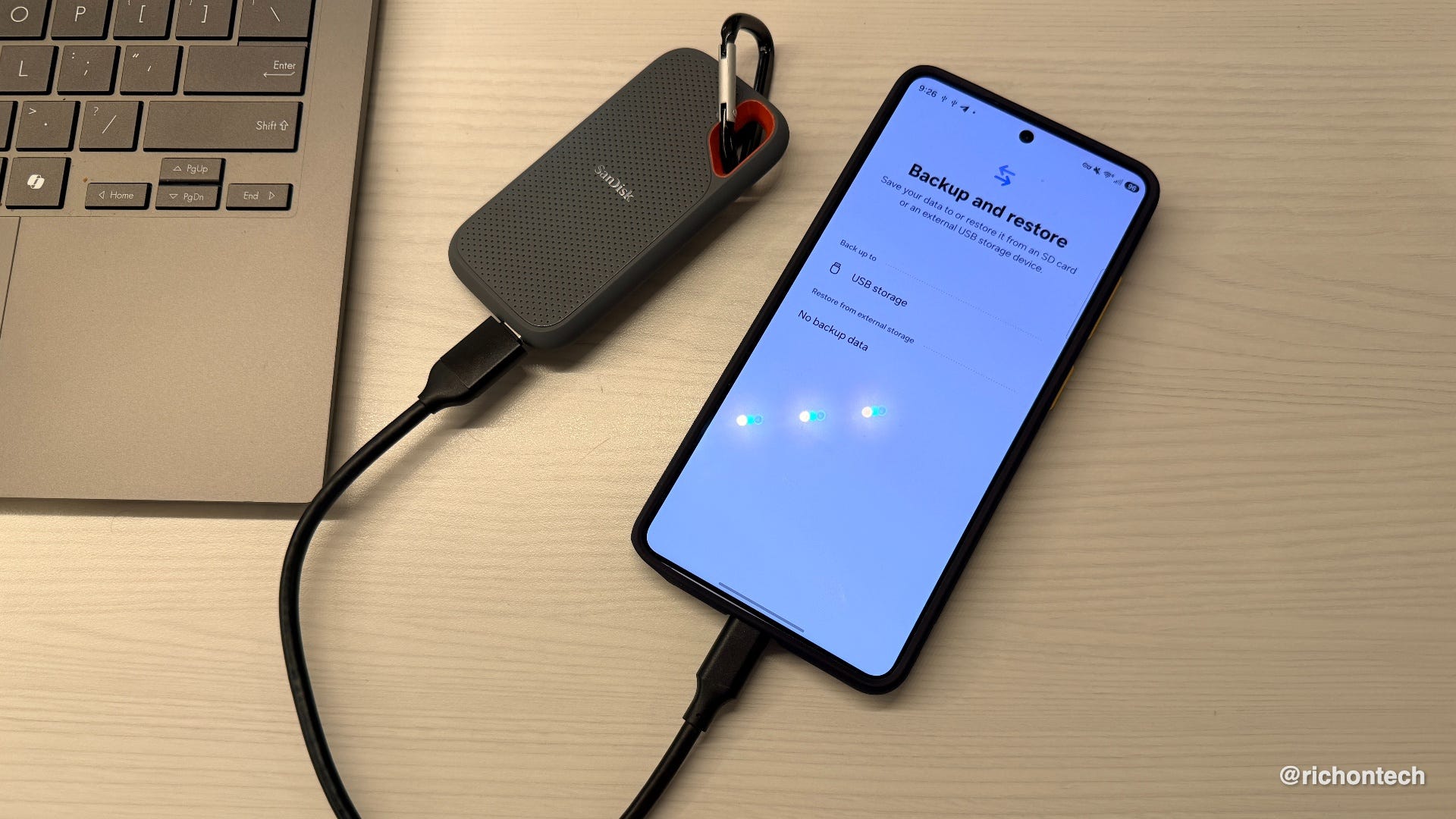
Some phones support USB backups
For text messages:
SMS Backup and Restore can automatically save your texts to the cloud or locally
Advanced tools (for more control)
If you want to dig into your backups and pull out specific things like messages:
These let you browse your backups and extract exactly what you need.
The bottom line
Backups don’t need to be complicated.
You don’t need the perfect system.
You just need something in place that’s actually working.
Because the people who email me every week all say the same thing:
“I wish I had backed this up.”
Don’t be that person.
Rich, the problem with OneDrive is that it looks at files on it, looks at the same file name on your WindowsPC and overwrites it — even though the one on your PC has been changed/updated — so you lose all your work. Also, if you decide to delete something from OneDrive, it deletes it from your computer. Why is it acting like the master controller instead of the PC?