
Let me start by saying I’ve been using Google Photos since pretty much day one. When it first arrived, it was amazing. All my photos in one place online, easily searchable by people, places and things.
Before Google Photos, there was Picasa. It was a simple program you installed on your computer that automatically found every photo on your hard drive and organized them chronologically. No cloud, no subscriptions, just a clean, easy way to see your entire library in one place.
Google Photos took that idea and pushed it even further. Now it’s cloud-based and can actually understand what’s in your photos. I can search my library and find just about anything in seconds. At this point, I’m sitting on more than 220,000 photos.
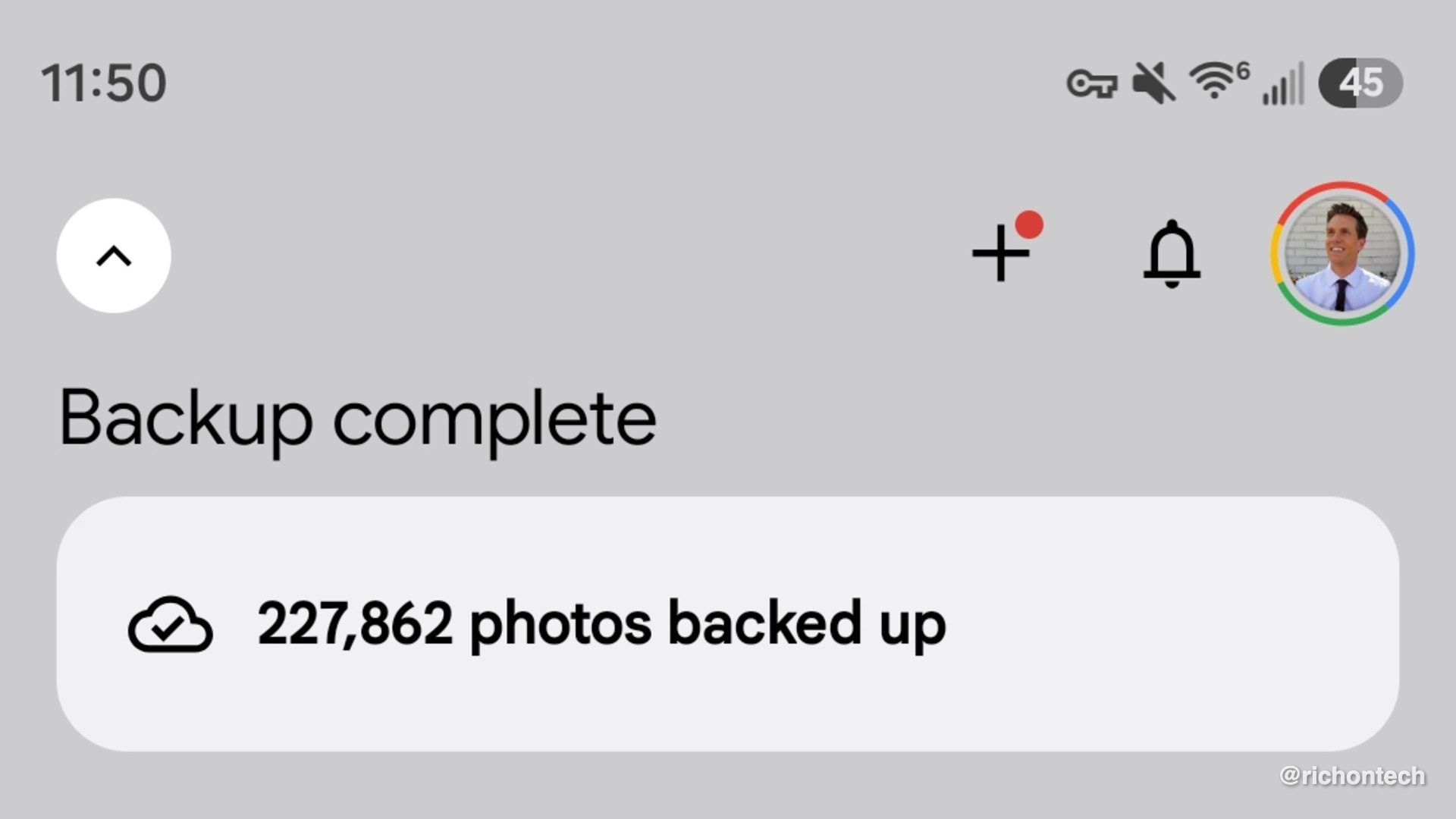
You can check your own count by opening the Google Photos app and tapping the “Backup complete” indicator in the upper left.
The backup problem
In the early days, Google offered an API that let third-party apps access your photo library. That made it easy to back everything up or organize it in different ways.
Eventually, Google shut that down, likely for security reasons. That’s good for privacy, but it made backups a lot harder.
Ever since then, I’ve been trying to find a reliable way to back up my entire Google Photos collection to a drive I actually own.
If your library is small, this is easy. Google Takeout lets you export your entire collection. You can download it or send it to services like Google Drive, Dropbox, OneDrive, or Box.
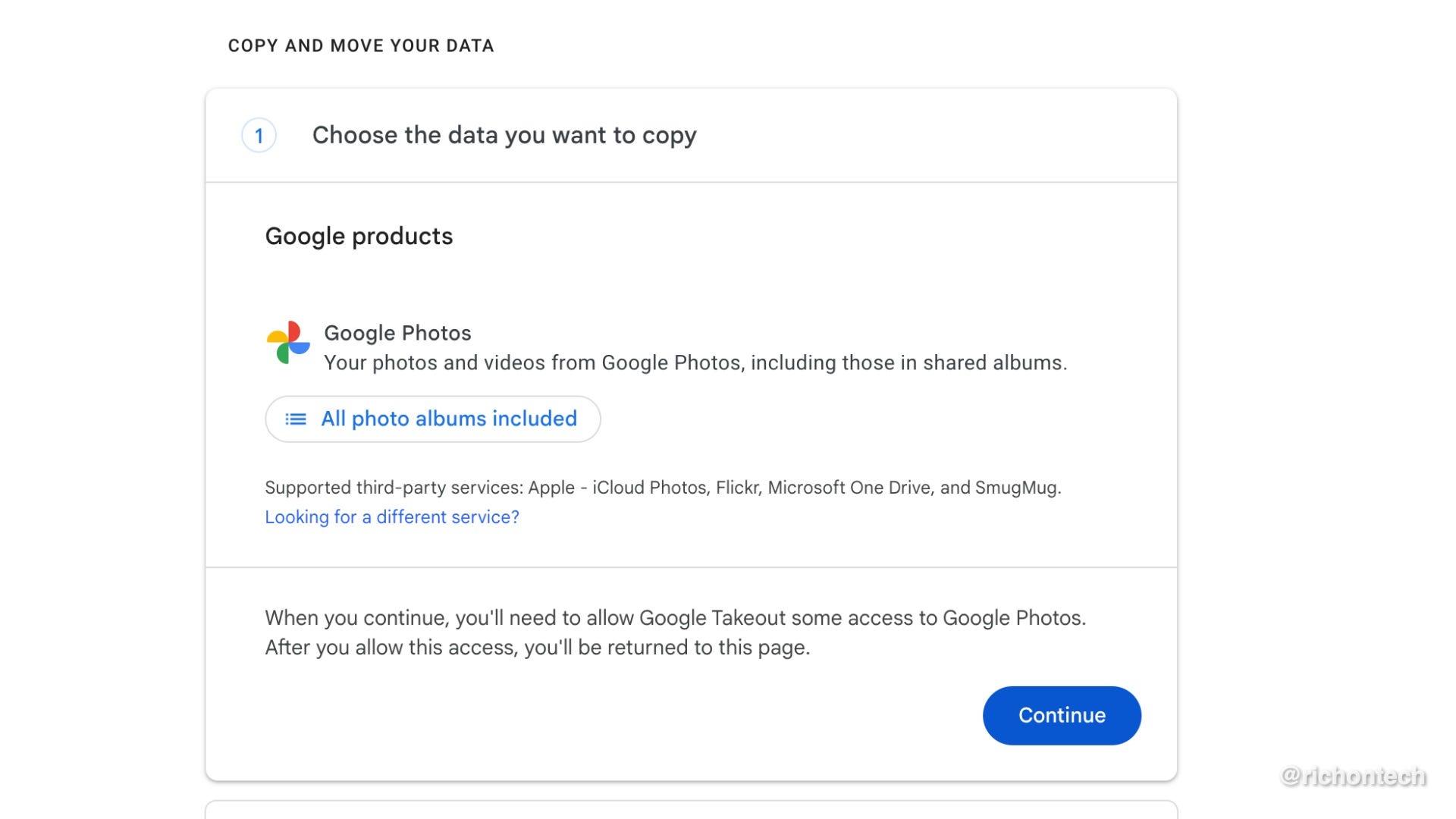
There’s even a version of Takeout specifically for Google Photos that can transfer your library directly to Apple iCloud, Flickr, Microsoft OneDrive, or SmugMug.
But when your collection is over 3 TB like mine, things get complicated. If you’re curious, head to one.google.com and tap “Storage” on the left-hand side.
Why this gets tricky fast
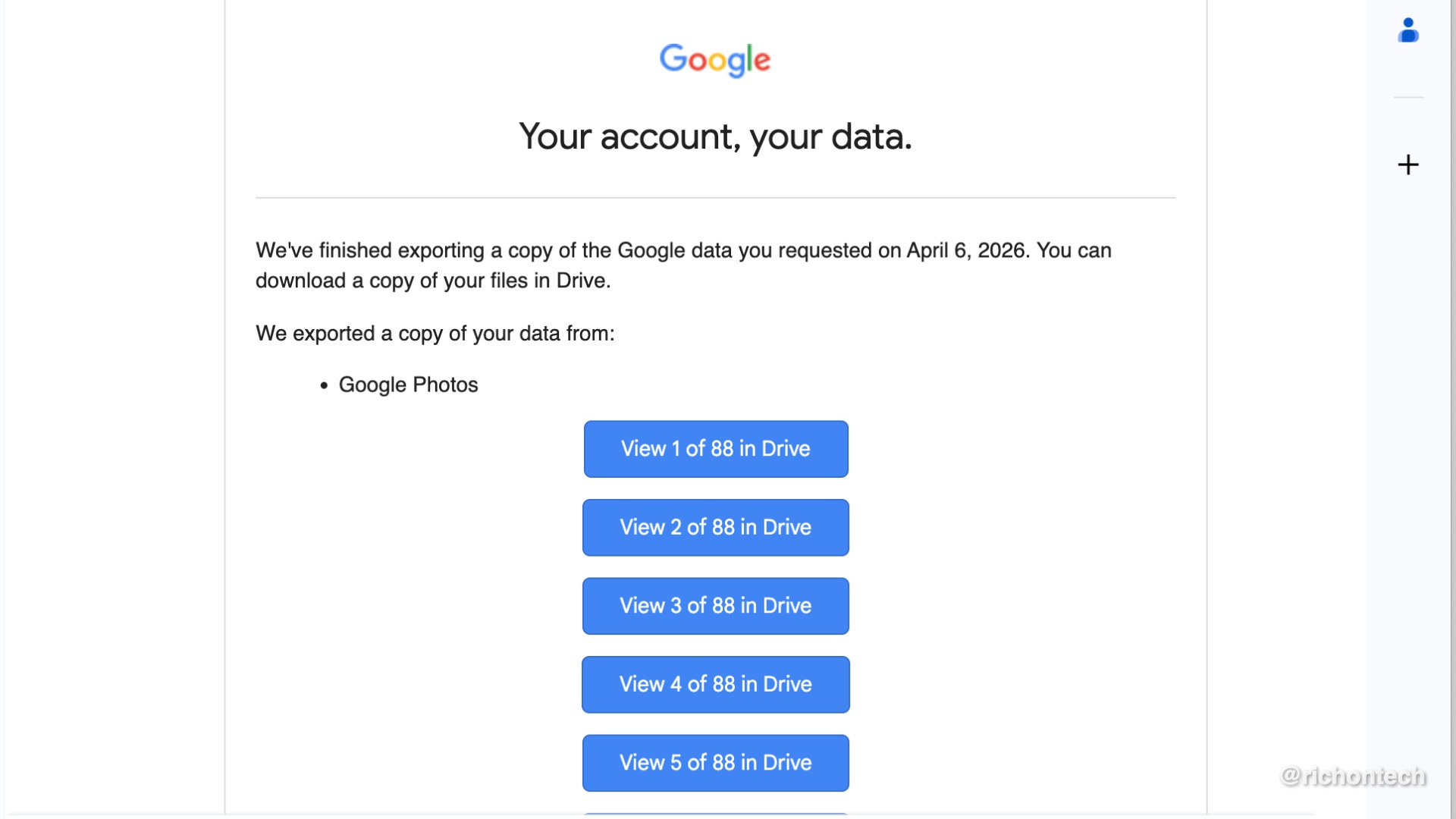
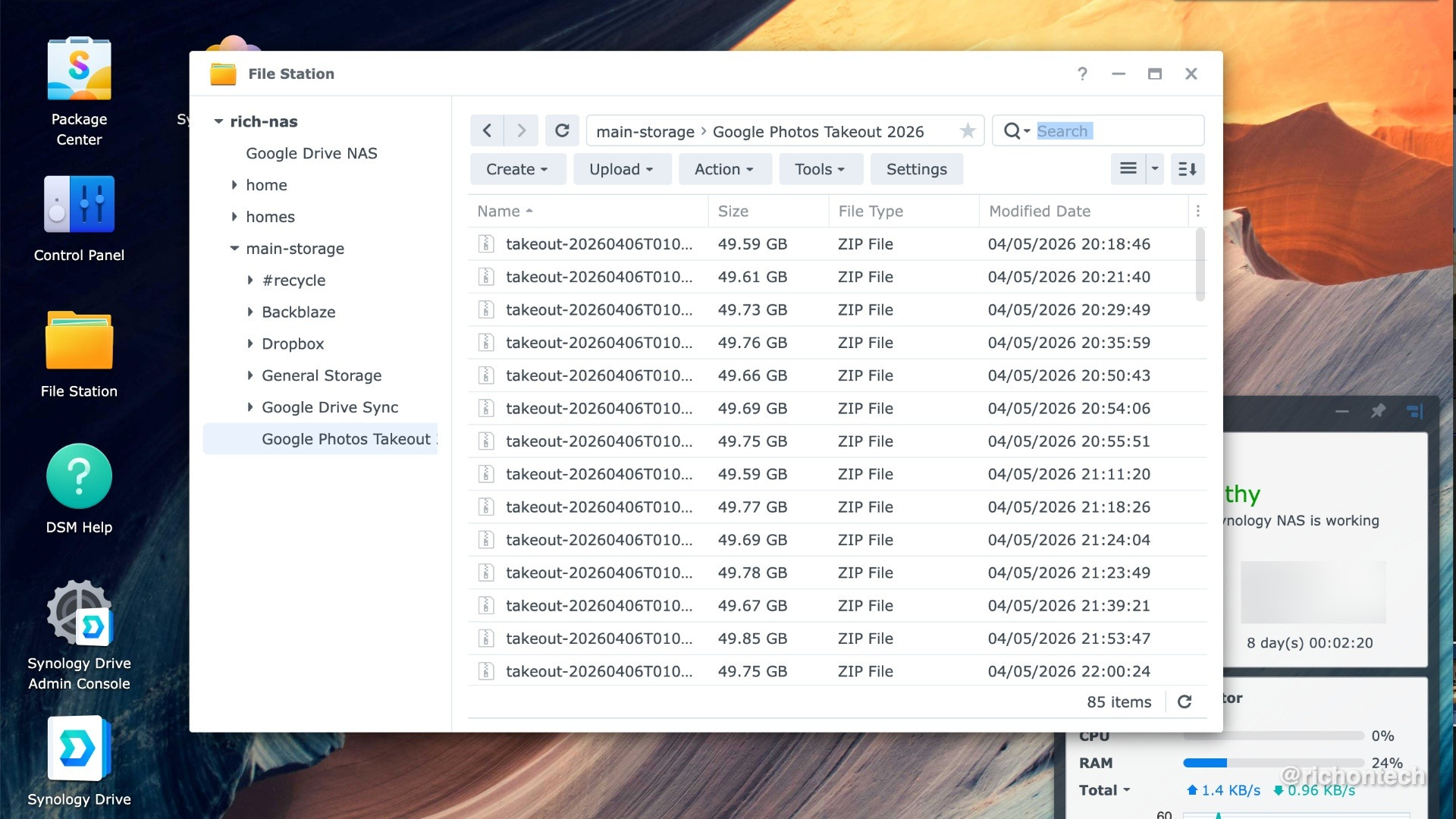
Google splits Takeout exports into 50 GB chunks. For me, that meant 88 separate files.
Now you’re dealing with:
Huge downloads
Storage limits
Time-consuming transfers
And if you’re already paying for cloud storage, finding space for several terabytes of data is not cheap.
On top of that, there’s a real risk in having your entire photo history stored in one place. Even if Google is reliable, losing access to your account could mean losing everything.
That’s not a chance I want to take.
My solution: cloud to NAS
After a lot of trial and error, here’s what worked.
The goal was simple:
Export my photos using Google Takeout
Send them to Google Drive
Let Google Drive sync to a NAS (network attached storage) at home
A NAS is basically your own personal cloud. It’s a hard drive connected to your network that you control.
I initially tried a UGREEN NAS, but it was loud and the software wasn’t reliable. Sync issues and duplicate files made it a non-starter.
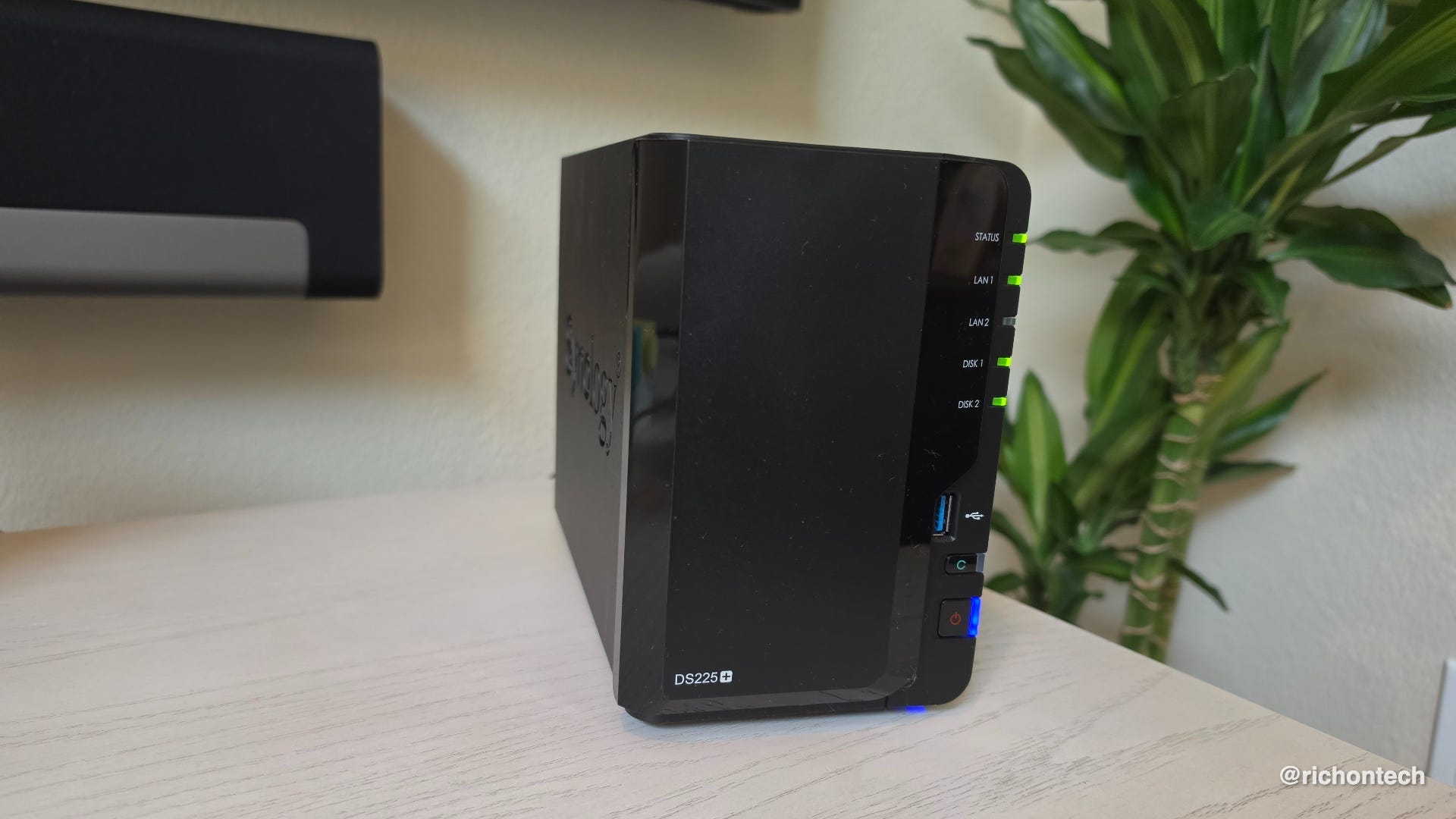
So I switched back to Synology. I used the same 16 TB drive I purchased and it was a much better experience.
I tested syncing with both Google Drive and Dropbox, made some changes, and confirmed everything worked correctly. Once I knew it was solid, I upgraded my Google Drive storage to 10 TB to handle the Takeout files.
The process
Here’s how it played out:
Requested a Google Takeout export
Chose Google Drive as the destination
Waited a few days for Google to prepare the files
Files started appearing in Google Drive
Google Drive synced everything to my Synology NAS (I got the DS225+)
At one point, my Drive storage was nearly maxed out at 10 TB. As I moved files off the synced folder on the NAS, space freed up again.
One important note: files in your Google Drive trash still count toward your storage, so you need to empty it.
Once everything finished syncing, I moved the files to a non-synced folder on the NAS. At that point, I had a full physical copy of my photo library at home.
The catch
The moment you finish, your backup is already outdated.
Every new photo you take isn’t included unless you run the process again.
For me, doing this once or twice a year is good enough. It gives me a solid snapshot of my library and peace of mind knowing I have a local copy.
A couple of takeaways
This process could be much easier.
Ideally, Google would offer a simple way to continuously sync your photo library to a local drive. Imagine a plug-and-play device that connects to Wi-Fi and keeps a live backup of your photos at home.
That would solve a lot of problems.
If you have a smaller library, there’s an easier option. Download your photos using Takeout and upload them to Amazon Photos. Prime members get unlimited photo storage, which gives you a second backup without much effort.
The bottom line
This isn’t a perfect backup.
The ideal setup is simple: one copy in the cloud, one on a local drive, and one somewhere else entirely.
Right now, I’ve got two: the cloud and a physical backup at home. That’s good enough for me. If something happens to one, the other is still there.
And when you’re talking about 20 years of memories, that redundancy matters.
Because at the end of the day, this isn’t just storage. It’s your entire digital memory bank.
And knowing you have a copy you control makes a big difference.