
Every week, I hear from viewers, listeners and readers dealing with all kinds of tech problems. That’s helpful because I have a front-row seat to the everyday challenges people are facing with technology.
And I’ve learned that if one person is having an issue, chances are plenty of others are dealing with the same thing.
So for this edition of Dear Rich, I’ve rounded up some recent questions and answers. Hopefully, you’ll find a solution to a problem you’ve been having or pick up a useful tip along the way.

Amazon account hacked and locked out
Connie writes…
My Amazon account was hacked, and whoever got in changed my email address and phone number. I can’t sign in, and I’ve called Amazon support seven times with no success. They keep telling me to wait 24 to 48 hours. I’ve changed all my other passwords, but I’m worried that opening a new account will mean losing Prime and Kindle Unlimited. What else can I do?
Connie, that’s a frustrating situation, especially when someone has changed the very information you need to recover your account.
I’d keep working with Amazon to regain access to your original account rather than starting over. Your Prime membership, Kindle books, Kindle Unlimited and other digital purchases are tied to that account and won’t automatically follow you to a new one.
Start at Amazon.com/help and explain that someone changed both your email address and phone number. Since you’ve already contacted support seven times, ask whether your case can be escalated to the account recovery or security team. Keep track of any case numbers.
You did the right thing by securing your email and financial accounts. Keep an eye on your credit card statements for unauthorized purchases.
Once you’re back in, turn on two-step verification, check your payment methods and recent orders, and sign out of any devices you don’t recognize.
I’d also love to know how this happened. Sometimes understanding how an account was compromised is the best way to keep it from happening again.
Missing 1,539 photos after switching iPhones
Annette writes…
I recently bought a new iPhone from AT&T and had everything transferred over. I even backed up my old phone to iCloud beforehand. But my old phone shows 16,368 photos and videos, while the new one shows only 14,829. That’s 1,539 missing items! AT&T and Apple haven’t been able to explain it. Where did they go?
Annette, first things first: Don’t erase or trade in your old iPhone until you figure this out.
There are several possible explanations, and the good news is that the photos may not actually be lost.
Start by opening the Photos app on your new iPhone and checking the iCloud syncing status. With a library that large, it can take time for everything to appear.
Next, visit iCloud.com/photos and check whether the missing pictures are there. If they are, that’s a good sign they’re safely stored in the cloud.
Another possibility is that some photos were stored only on your old phone or in shared albums.
One important distinction: backing up your iPhone to iCloud and syncing your photos with iCloud Photos are two different things. Depending on your settings, your photos may be included in a device backup or synced separately.
I’d keep both phones until you’ve confirmed your important pictures and videos are safely stored. Don’t rely on the item count alone.
Sponsored: Give your old photos a digital life
One of the questions I get all the time is how to turn old printed photos into digital files. Sure, you can take pictures of them with your phone, use a scanning app or buy a scanner. But if you’ve got boxes and boxes of family photos, there’s a much easier way.
A company I’ve personally used and recommended for years is ScanMyPhotos.com. They’re based in Southern California and have been digitizing family memories since 1990.
The process is simple. Pack up your old photos, send them in, and let the professionals handle the scanning. Your pictures are carefully tracked and processed at their facility, then returned along with high-quality digital versions you can download, store and share. They also handle slides, negatives, VHS tapes and old home movies.
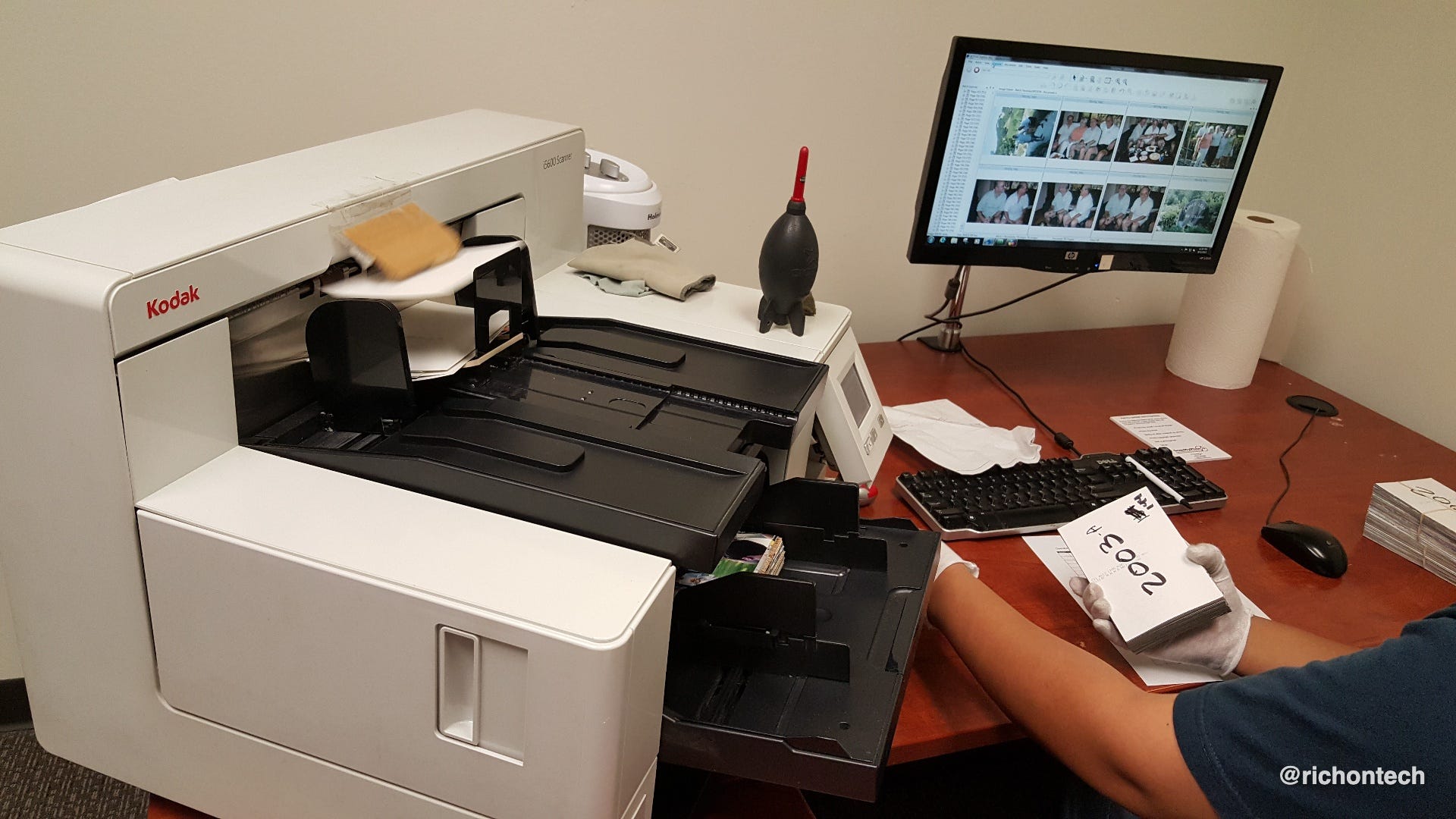
What I love about digitizing photos is that it unlocks memories that might otherwise sit forgotten in a box. Suddenly, you can share those pictures with family, organize them by date, and even use modern photo apps to search for familiar faces and places. It’s amazing what you rediscover.
And here’s something worth thinking about. Don’t wait until a fire, flood or other disaster makes you wish you’d preserved those photos. The best time to digitize them is while they’re still in good condition.
ScanMyPhotos has options for everything from a small stack of pictures to thousands of family photos. Their popular Photo Scanning Box lets you send in more than 1,800 photos for digitizing, with shipping included.
Special savings for Rich On Tech readers: Visit ScanMyPhotos.com and use promo code RICHONTECH at checkout for an exclusive additional discount on your order.
Those old memories deserve to be seen again, not forgotten in a box.
Chrome keeps switching to Yahoo
Valerie writes…
My Chrome browser keeps getting hijacked by Yahoo. When I open Chrome, the search page looks different, and everything searches Yahoo instead of Google. This has happened twice on my laptop. How do I stop it?
Valerie, this sounds like a browser extension changing your default search engine behind the scenes.
Some extensions do this to make money from your searches. They might have been installed alongside another program without you realizing it.
Here’s where I’d start:
Open Chrome and click the three dots in the upper-right corner.
Go to Extensions → Manage Extensions.
Remove anything you don’t recognize or no longer use.
Go to Settings → Search engine and select Google or whichever search engine you prefer.
If Yahoo keeps coming back, you can reset Chrome entirely.
Go to Settings → Reset settings → Restore settings to their original defaults.
The good news is that this won’t delete your bookmarks or saved passwords. It will reset your search settings and disable extensions.
If the problem returns after that, I’d investigate recently installed software on your computer.
Scary virus warnings on a laptop
Cathy writes…
What are the top three antivirus programs for a laptop? I keep getting pop-up warnings telling me my computer might be damaged by Trojans and urging me to buy antivirus software. Should I be worried?
Cathy, before you spend any money, there’s a good chance those warnings aren’t coming from your antivirus software at all.
One of the most common tricks online is getting people to allow notifications from a website. That site can then send scary warnings that look like legitimate security alerts.
If you’re using Chrome, go to Settings → Privacy and security → Site settings → Notifications.
Look through the websites you’ve allowed to send notifications and remove anything unfamiliar.
Clearing your browsing history alone won’t necessarily fix this. You need to revoke those notification permissions.
As for antivirus protection, I think Microsoft’s built-in Defender is all most Windows users need. It’s free and already included with Windows.
If you want to compare other programs, check the independent testing results at AV-TEST.
You can also open Windows Security and run a scan for peace of mind.
Most importantly, don’t click a scary pop-up and buy whatever software it’s selling.
Are passkeys really safer than passwords?
Bill in Appleton, Wisconsin writes…
I keep getting asked to upgrade my password to something that uses facial recognition or a fingerprint. I’m not comfortable sharing that information over the internet. Sometimes I can use a PIN instead, but is that any safer than the password I already use?
Bill, I think you’re talking about passkeys, and there’s one important thing to understand: Your face and fingerprint aren’t being sent to the website.
When you use Face ID, a fingerprint or your device PIN, you’re simply proving to your phone or computer that you’re the person authorized to sign in.
The device then uses a special digital credential to authenticate you with the website.
Your fingerprint, facial recognition information and device PIN aren’t shared with that website.
That’s one reason passkeys are generally safer than traditional passwords. They’re also designed to resist phishing, so someone can’t simply trick you into entering a passkey on a fake website.
And yes, you can use your device PIN instead of biometrics when that option is supported.
My recommendation is to embrace passkeys when they’re offered by a trusted service. They’re easier to use, and in most situations, more secure than passwords.
Keeping a landline when copper service ends
Alice writes…
Verizon is discontinuing the copper landline service we’ve had for nearly 50 years. We want to keep our number, but more importantly, our landline worked during Superstorm Sandy when we lost power for two weeks. My husband has health issues, and our cell service isn’t always reliable. What should we replace it with?
Alice, this is a really important question because modern home phone service isn’t necessarily the same as an old-fashioned copper landline.
I’d look into Ooma. It lets you keep using regular home phones and transfer your existing phone number.
A collegue recently told me he transferred a landline he’d had for 64 years to Ooma. He went from paying $127 a month to about $20, including taxes and fees, for Ooma Premier.
He also did something smart: He connected his modem, router and Ooma equipment to a battery backup.
That can keep the phones working during a power outage, but only if the internet connection itself is still operational.
And that’s the catch.
Unlike traditional copper service, internet-based home phones depend on electricity and a working internet connection. Verizon’s cellular-based replacement also depends on adequate cell coverage.
I’d call Ooma before buying anything and ask about transferring your number. Don’t cancel Verizon until the number transfer is complete.
Since emergency calling is especially important in your household, I’d also make sure you have a separate backup plan. Some newer smartphones offer emergency satellite features, but availability depends on the specific phone and service.
Is an AI agent safe for beginners?
Beth writes…
I’m 65 and love gadgets, but I’m still learning about AI. I’ve been watching videos about Meta’s Muse AI and would love to try it. I’m worried about opening Pandora’s box on my computer or phone. I wouldn’t give it my bank passwords, but what if I have a spreadsheet with my 401(k) information? Is it safe to experiment?
Beth, I think you should absolutely explore what AI can do, but start small.
The most important thing to understand about AI agents is that what they can access depends on the permissions and connections you give them.
You don’t need to connect your bank account, financial documents or other sensitive information just to see how an AI agent works.
Start with simple tasks like researching a topic, organizing information or drafting an email.
As you get more comfortable, you can decide whether to connect additional services.
Meta has built safeguards into Muse that are designed to catch potentially dangerous actions, but no AI agent is foolproof.
And I wouldn’t give an agent access to a spreadsheet containing sensitive retirement account information just for experimentation.
My advice is the same whether you’re using Muse or another AI agent: Start with the least amount of access necessary, review permissions carefully and pay attention to what the agent is doing.
You don’t have to hand over the keys to your digital life to get something useful out of AI.
Surprise $65 subscription after a $2 offer
Tom writes…
I signed up for what I thought was a refundable $2 introductory offer from JustAnswer. What I didn’t realize was that I’d also been enrolled in a $65-a-month membership. I found an email saying I’d joined, canceled the membership and disputed the $67 charge. Citibank reversed it. How do we stop companies from doing this?
Tom, I’m glad Citibank took care of the charge.
This is a great reminder to be extra careful with those introductory offers that seem almost too cheap to pass up.
Sometimes the small upfront payment is tied to a recurring subscription, and the terms aren’t nearly as obvious as they should be.
Before entering your credit card information, look for phrases like automatically renews, membership, trial period or billed monthly.
Also, check your confirmation emails. Tom found his membership notice in a blocked email folder, which is how he eventually discovered what happened.
If you find an unwanted subscription, cancel it immediately and save the confirmation.
Then contact your credit card company if you believe the charges were unauthorized or improperly disclosed.
Awareness really is the best defense against these kinds of surprises.
Should couples share one Apple Account?
Jim in Morrison, Colorado writes…
My wife was getting notifications from our outdoor camera, but I wasn’t. I also stopped getting text message notifications. After hours of troubleshooting, Apple Support told me the problem was that my wife and I have shared the same Apple Account for about 15 years. They said we should have separate accounts. Is that really necessary?
Jim, I would definitely recommend that you and your wife each have your own Apple Account.
I know sharing one account probably seemed convenient when you first set everything up, but it can create some strange problems.
Apple uses your account to sync messages, photos, contacts, settings and other personal information across devices.
When two people share the same account, those systems can get confused about which information belongs to whom.
It can also mean receiving each other’s messages or having personal data mixed together.
Now, I can’t say for certain that the shared account caused your notification problem, but separating the accounts is still the right move.
The good news is that you don’t have to give up sharing purchases and subscriptions.
Apple has a feature called Family Sharing that lets everyone keep their own account while sharing eligible apps, purchases and services.
Before making the switch, review and back up important photos, contacts and other information so nothing gets lost in the transition.
And Jim, I’m curious: Are you and your wife also receiving each other’s text messages? That can be another side effect of sharing an account.
That’s it for this round of Dear Rich!
Thanks for continuing to send such great questions. I read them all and do my best to respond, even if I can’t get to every single one.
Have a tech question of your own? Send it my way. You might see it answered in a future newsletter or hear it on the Feedbag segment of the radio show.
Until next time,
Rich
I am loving this “Dear Rich” segment. Is this going to be a weekly thing.